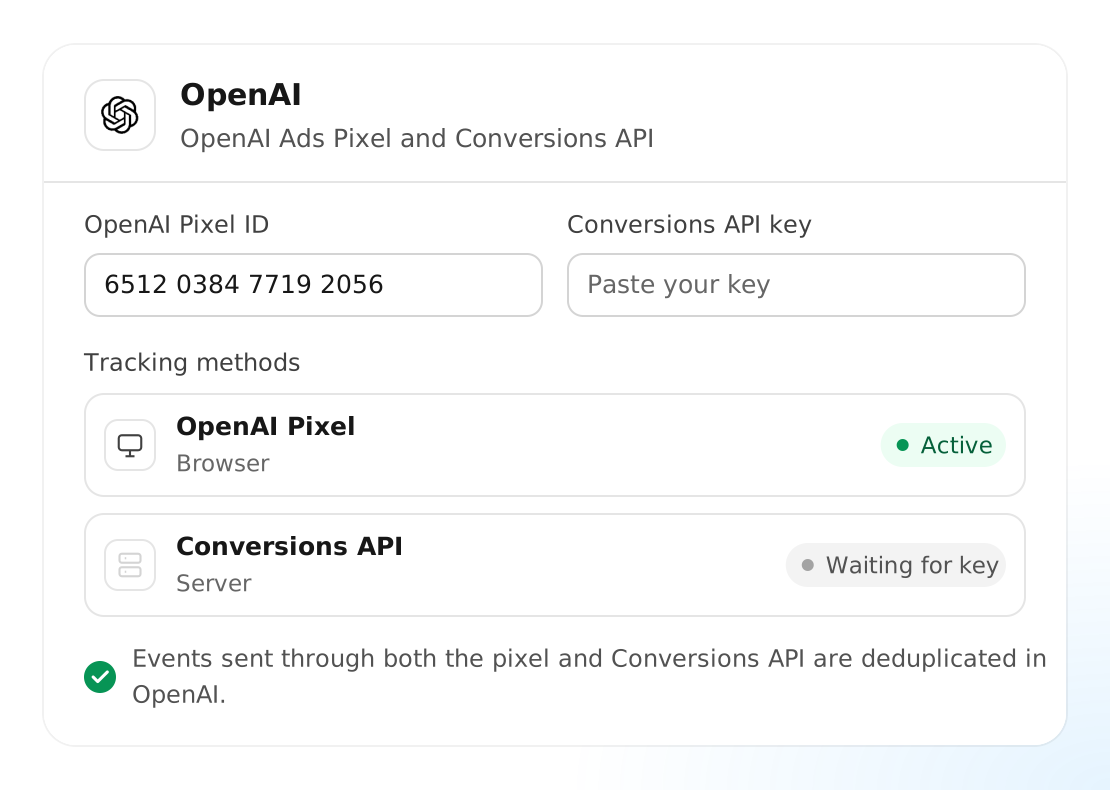
Bring your store’s purchase and shopping data into OpenAI Ads. Analyzify connects the OpenAI Pixel and Conversions API in one Shopify integration, helping you measure conversions from your ChatGPT campaigns.
Give OpenAI Ads purchase events from your Shopify store to support campaigns focused on generating sales.
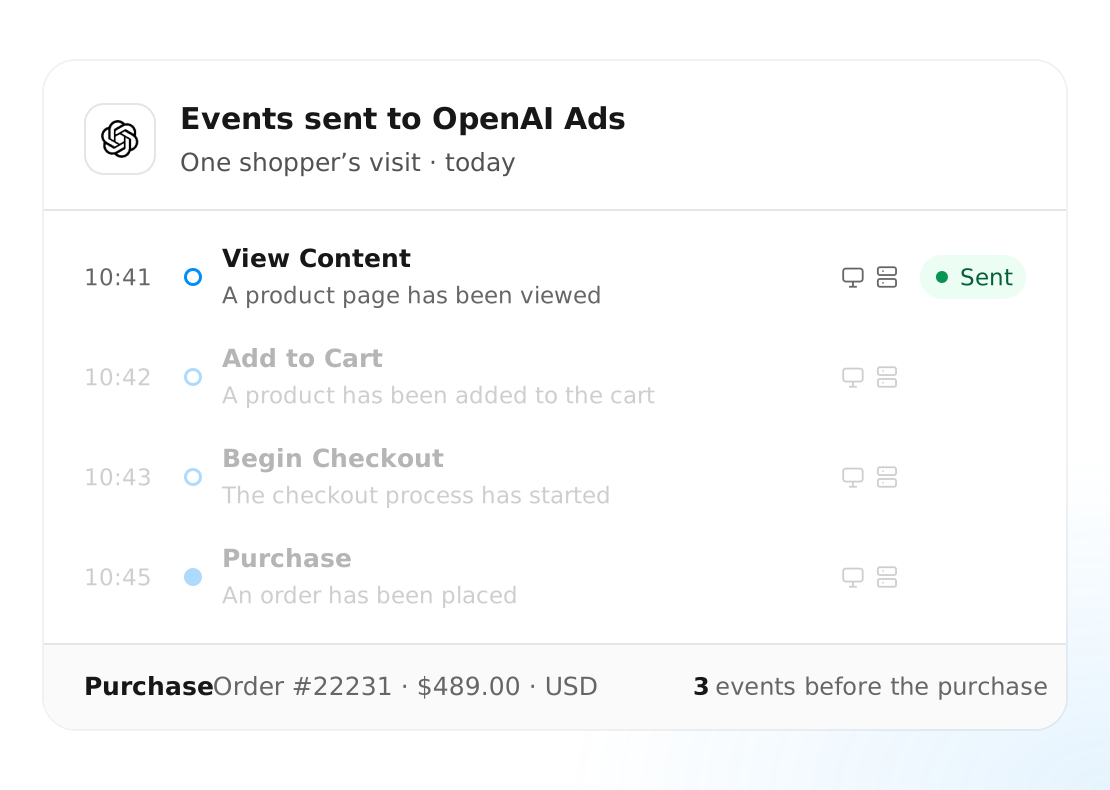
Complement the pixel with server-side delivery, so supported events rely less on the shopper’s browser to reach OpenAI Ads.
Events sent through both the pixel and Conversions API are deduplicated in OpenAI, keeping the same action from being counted twice.
Track product views, cart additions, checkout starts, and purchases. Measure shopping activity before an order is placed, alongside completed sales, using the same integration.
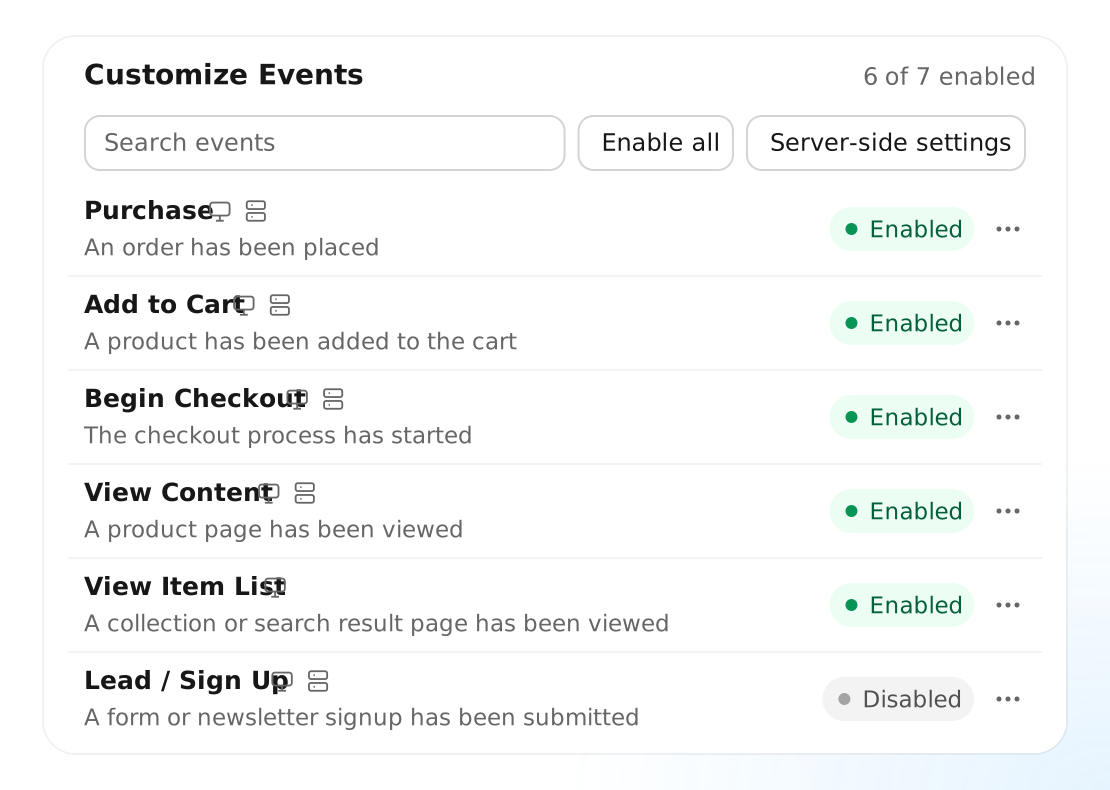
Choose which events your store sends to OpenAI Ads. Keep the actions relevant to your business, and adjust your selection in Analyzify as your measurement goals change.
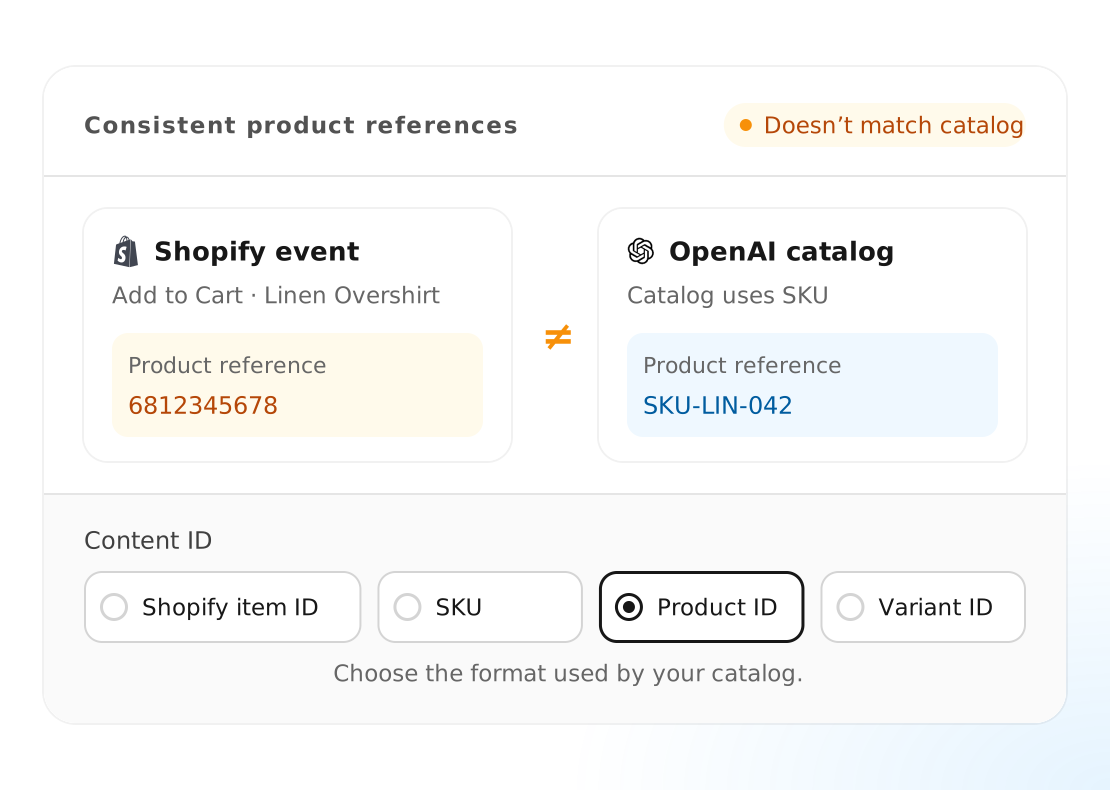
Use the same product references in your Shopify events and OpenAI catalog. Match the format your catalog uses, so a product is identified consistently across both.
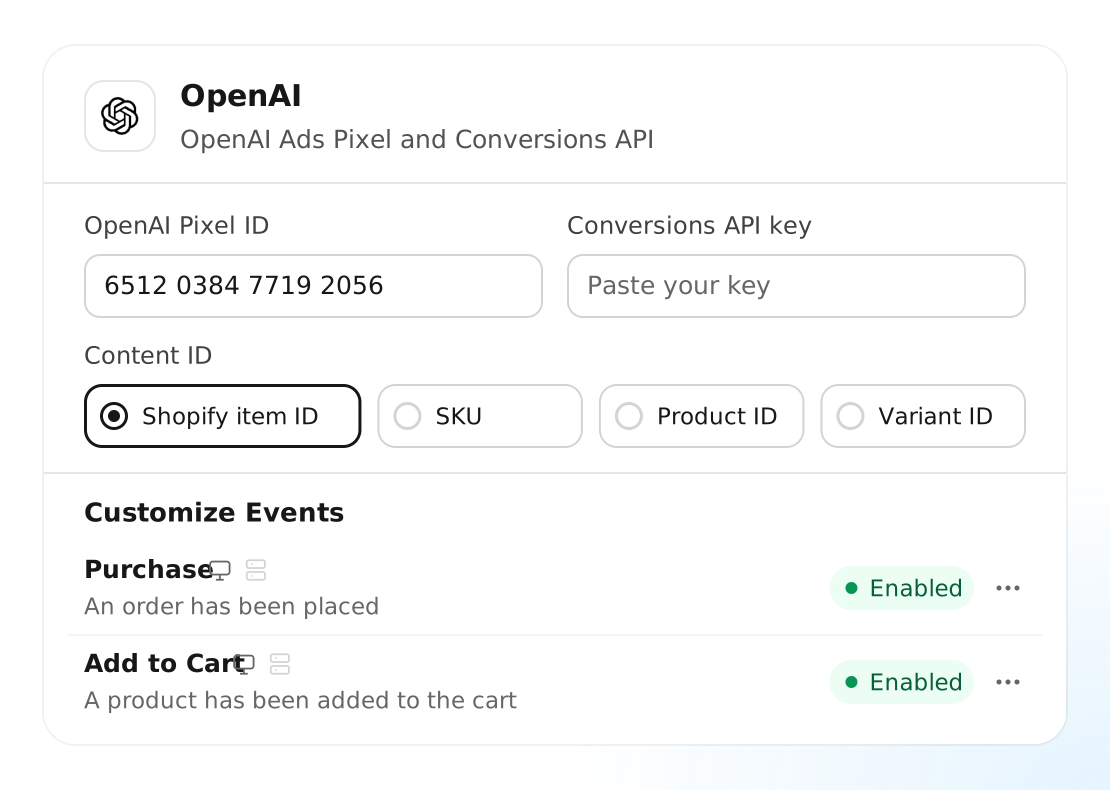
Connect OpenAI Ads once in Analyzify. Server-side delivery activates alongside the pixel, so you can use both tracking methods without configuring a separate server-side integration.
You need Analyzify, an OpenAI Ads account with measurement tools enabled, an OpenAI Pixel ID, and a Conversions API key. Add the two values under Integrations > OpenAI in Analyzify.
Analyzify supports page views, product views, product-list views, searches, add-to-cart actions, checkout starts, purchases, leads, and registrations. Lead and registration events cover supported form and newsletter sign-ups.
An event reaching OpenAI does not automatically make it a campaign conversion. Create the conversion event you want to measure in OpenAI Ads Manager, select the same pixel, and attach it to the relevant campaigns.
Yes. You can connect an existing pixel using its Pixel ID. When moving tracking to Analyzify, remove overlapping pixel installations from your theme, Google Tag Manager, or another app to avoid duplicate events.
Choose Shopify item ID, SKU, Product ID, or Variant ID in the Content ID setting. The format should match the identifiers used by your OpenAI catalog.