










On January 13, 2026, Shopify introduced a new default setting for marketing pixels. App Pixels now default to “Optimized” mode instead of “Always on.” This change affects how Shopify handles data flow from third-party app pixels - but it does not affect all tracking setups equally.
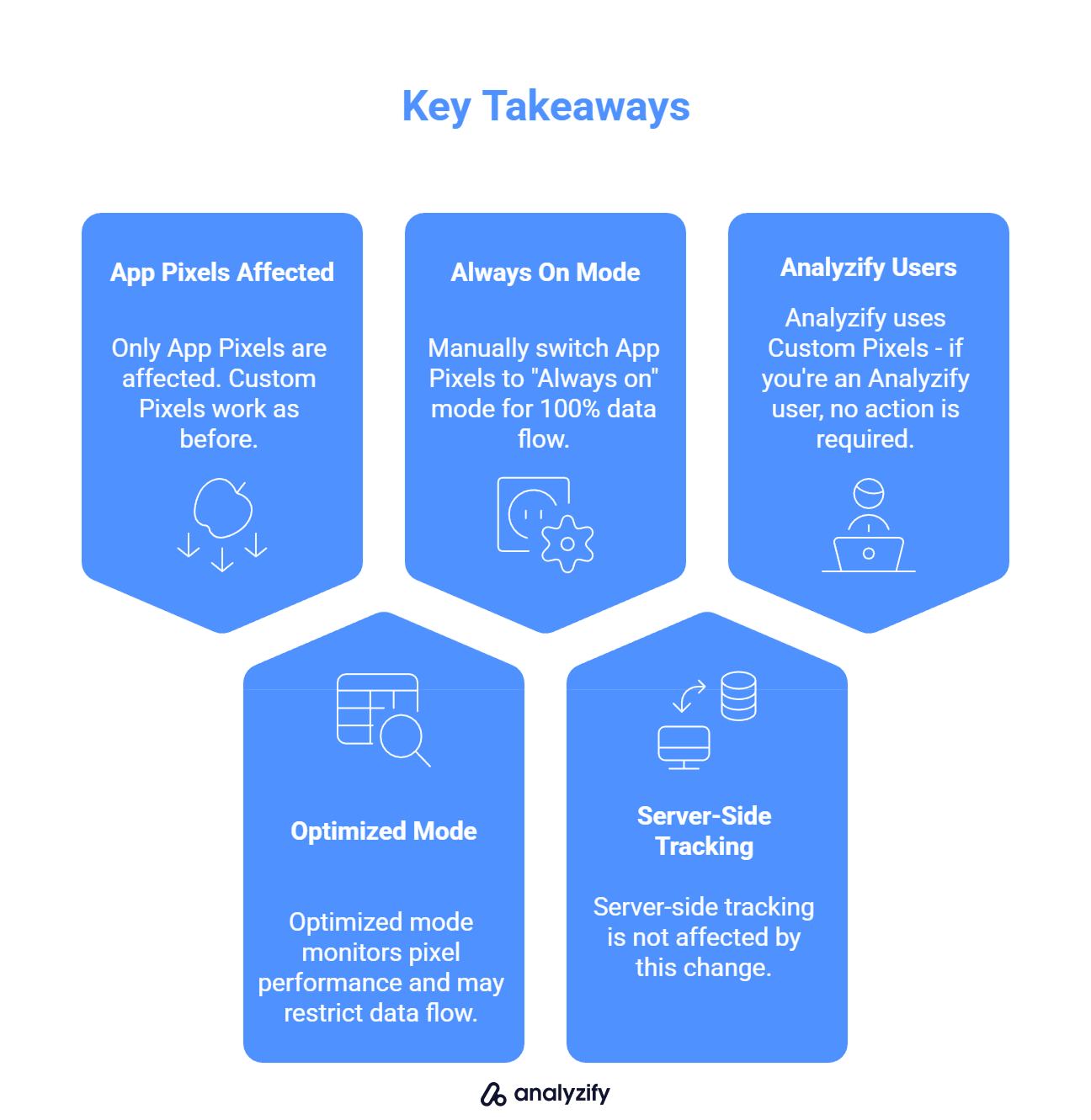
5 Key Takeaways:
- Only App Pixels are affected - Custom Pixels work exactly as before with no optimization algorithm applied.
- “Optimized” mode monitors pixel performance and may restrict data flow if Shopify detects no attribution signals over days or weeks.
- You can manually switch any App Pixel to “Always on” mode to guarantee 100% data flow.
- Server-side tracking through Meta CAPI, GA4 Measurement Protocol, and TikTok Events API is not affected by this change.
- Analyzify uses Custom Pixels - if you’re an Analyzify user, no action is required.
What Shopify Changed on January 13, 2026
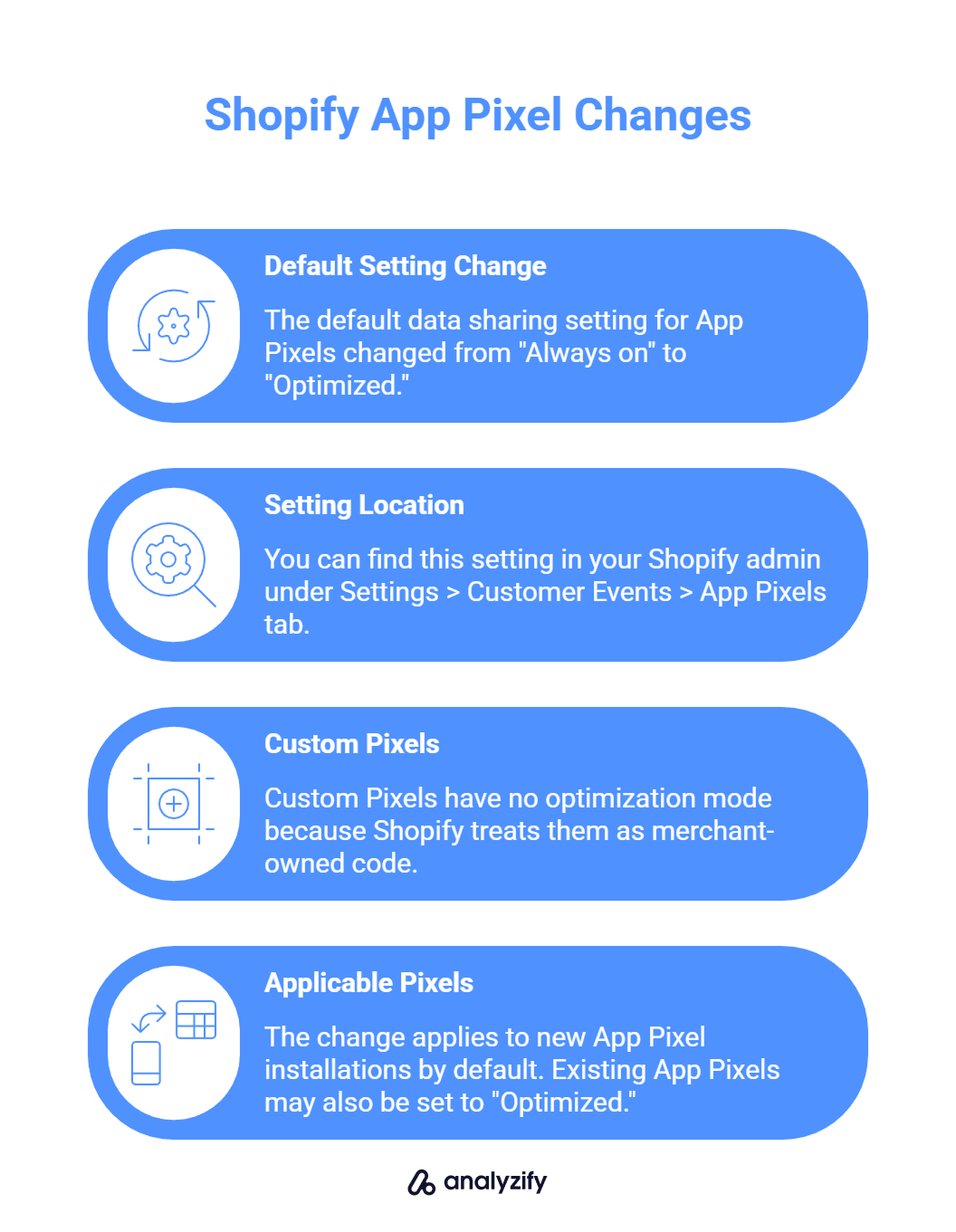
Shopify changed the default data sharing setting for App Pixels from “Always on” to “Optimized.” You can find this setting in your Shopify admin under Settings > Customer Events > App Pixels tab. Click on the “Data” column next to any App Pixel to see or change its current mode.
This setting only appears for App Pixels. Custom Pixels have no optimization mode because Shopify treats them as merchant-owned code that should run exactly as written.
The change applies to new App Pixel installations by default. Existing App Pixels may also be set to “Optimized” depending on when they were installed and how Shopify rolled out the update.
App Pixels vs Custom Pixels - Who Is Affected
The distinction between App Pixels and Custom Pixels determines whether this update affects your tracking.
App Pixels are created and managed by third-party Shopify apps. When you install a marketing or analytics app that adds tracking to your store, it typically creates an App Pixel. These pixels are now subject to Shopify’s optimization algorithm.
Custom Pixels are tracking scripts that you or your developer add directly through Shopify’s Customer Events settings.
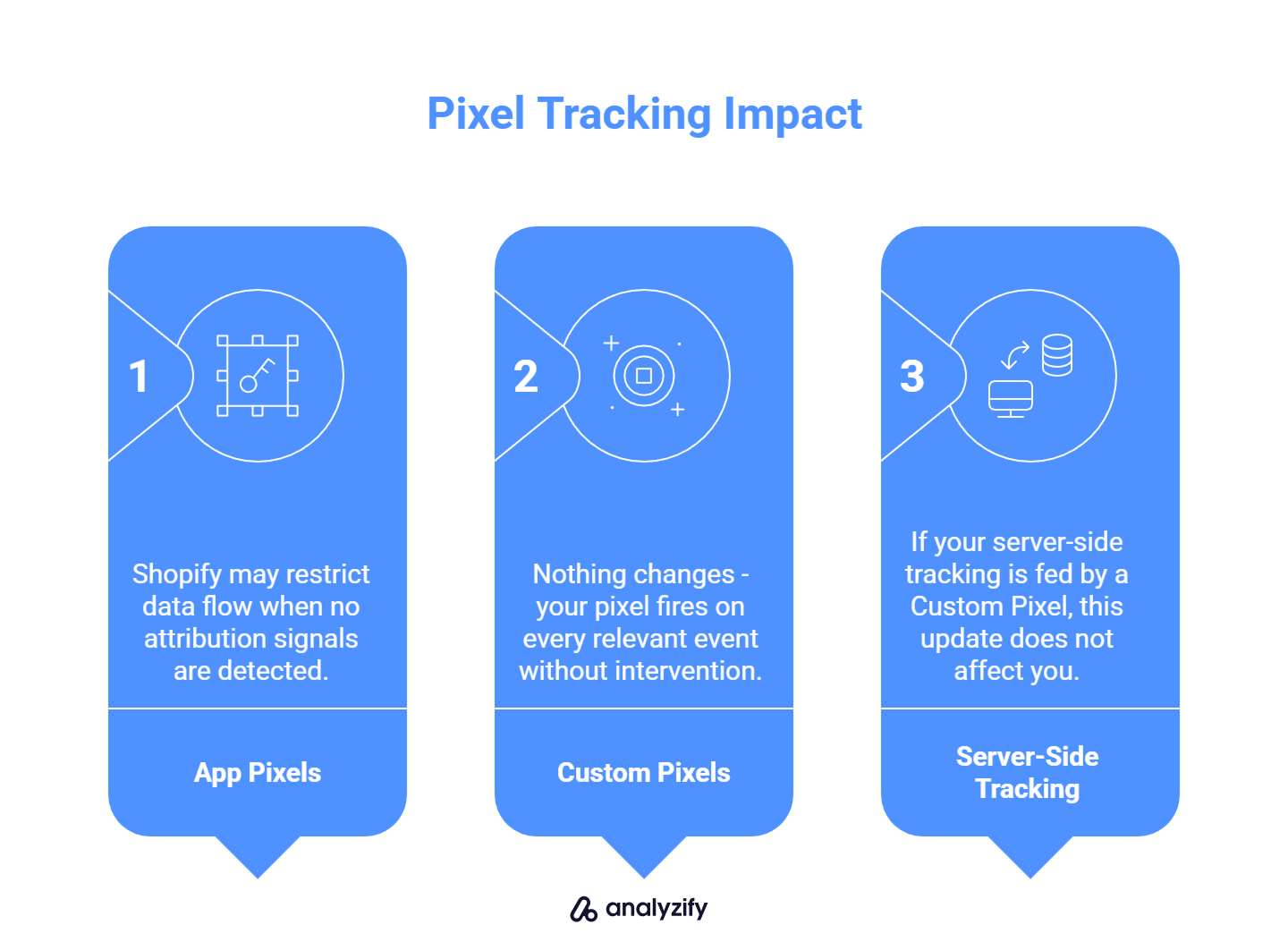
Here’s what this means in practice:
- If your tracking runs through an App Pixel, Shopify may restrict data flow when no attribution signals are detected.
- If your tracking runs through a Custom Pixel, nothing changes - your pixel fires on every relevant event without intervention.
- If your server-side tracking (Meta CAPI, GA4 Measurement Protocol, TikTok Events API) is fed by a Custom Pixel, this update does not affect you.
How “Optimized” Mode Works
When an App Pixel is set to “Optimized,” Shopify monitors outbound pixel requests and checks whether they correlate with traffic or sales attribution.
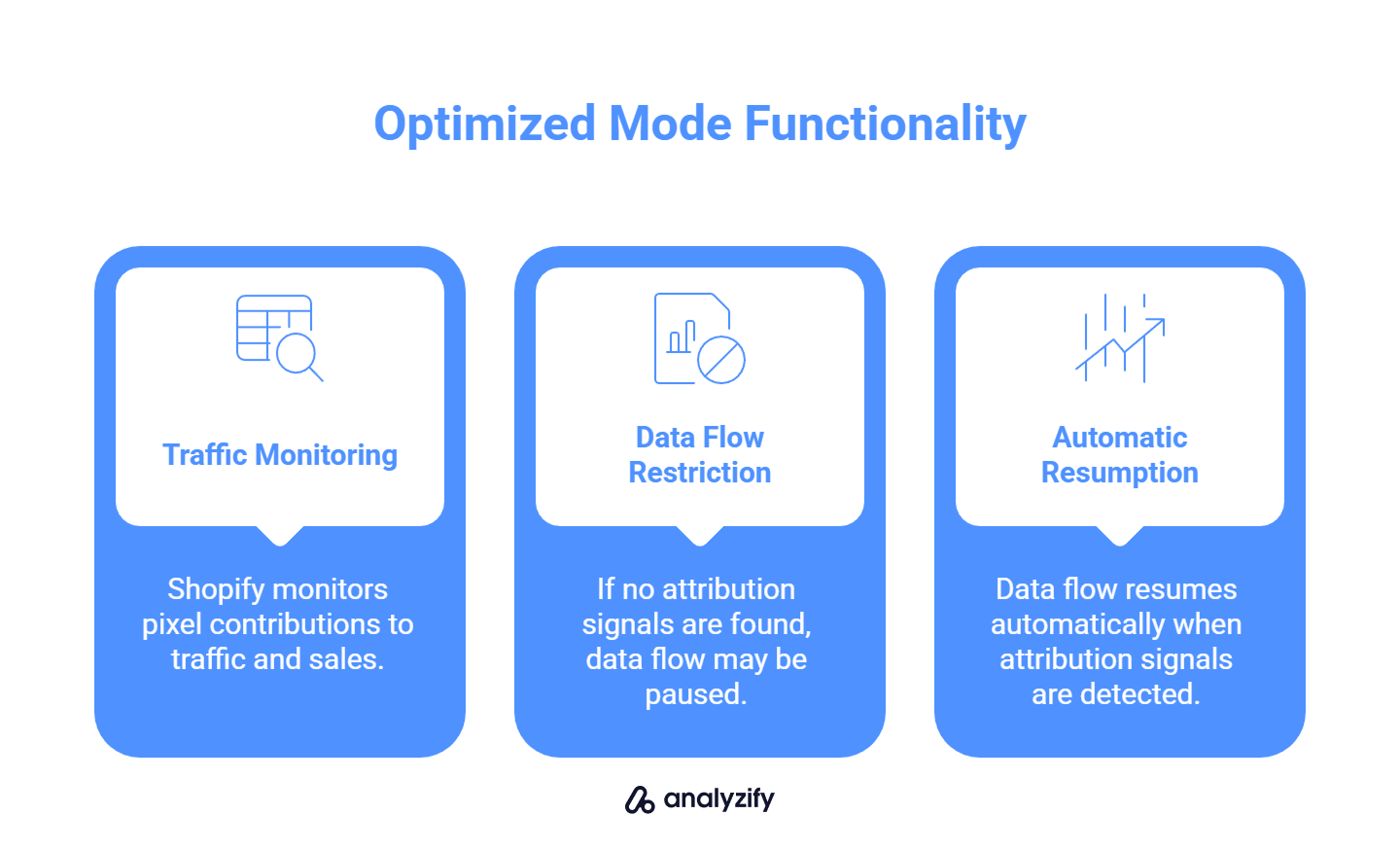
The algorithm works like this:
- Shopify tracks whether the pixel contributes to any measurable traffic or sales.
- If no attribution signals are detected over days or weeks, Shopify may restrict or pause data flow.
- Data flow resumes automatically when attribution signals return.
You will not receive a notification if your App Pixel’s data flow is restricted. You would need to check your pixel’s performance in your ad platform or analytics tool to notice the drop.
Shopify introduced this feature to reduce page load impact from underperforming pixels, protect merchants from apps collecting data without delivering results, and limit tracking from dormant or abandoned tools.
How to Switch an App Pixel to “Always On”
If you want to bypass Shopify’s optimization algorithm for a specific App Pixel, you can manually set it to “Always on” mode.
To change this setting:
- Go to Settings in your Shopify admin
- Click Customer Events
- Select the App Pixels tab
- Find the pixel you want to modify
- Click the value in the “Data” column
- Select “Always on”
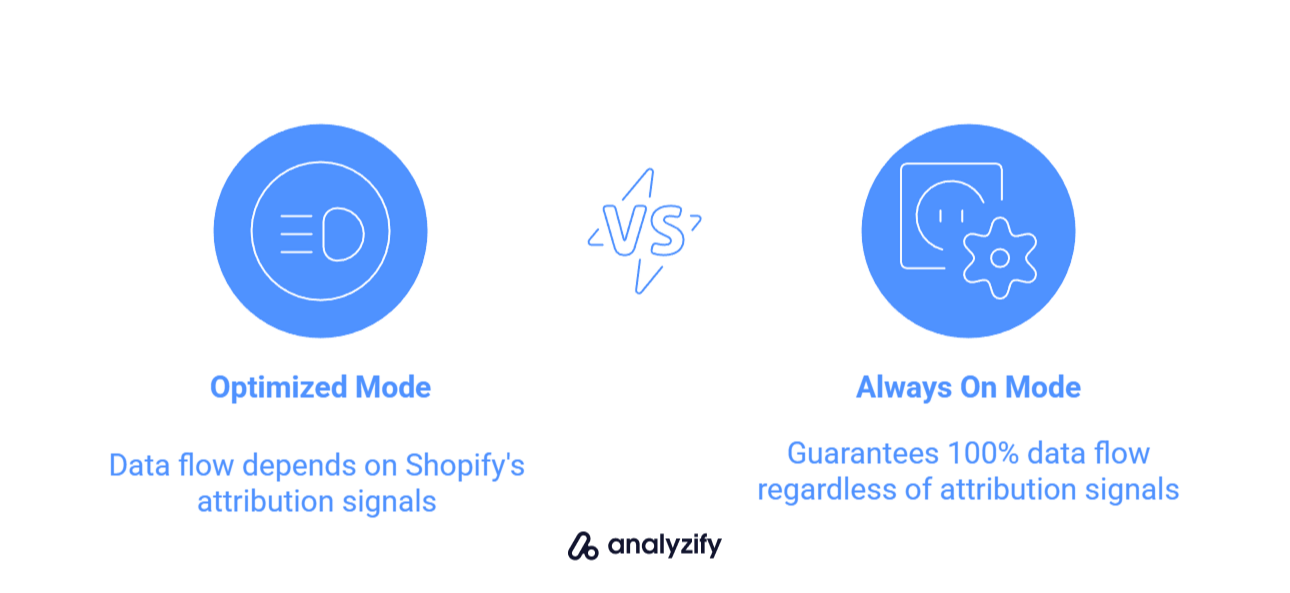
Setting an App Pixel to “Always on” guarantees 100% data flow with no filtering or throttling. Every event will be transmitted regardless of whether Shopify detects attribution signals.
You should use “Always on” if your tracking app sends data to an intermediary endpoint that forwards it to Meta, Google, or TikTok server-side. Since Shopify cannot see this forwarding relationship, it may incorrectly classify the pixel as non-performing. “Always on” prevents this misclassification.
What This Means for Analyzify Users
You don’t need to do anything. Your Analyzify tracking is not affected by this update.
Analyzify uses Custom Pixels for tracking, not App Pixels. Your existing setup requires no changes - purchase tracking, event tracking, and all integrations will continue to work exactly as before.
Conclusion
Shopify’s January 2026 update changed the default setting for App Pixels to “Optimized,” which may restrict data flow if no attribution signals are detected. Custom Pixels and server-side tracking are not affected. If you use an app that relies on App Pixels, check your settings and switch to “Always on” if you want to guarantee uninterrupted data flow.