










When Google Ads numbers do not match what you see in analytics or attribution reports, most people immediately suspect tracking issues. But before blaming tools or setups, there is a more basic question worth asking: is Google Ads actually labeling its traffic properly?
In many Shopify stores, the issue is missing or inconsistent UTM parameters inside the ad account itself.
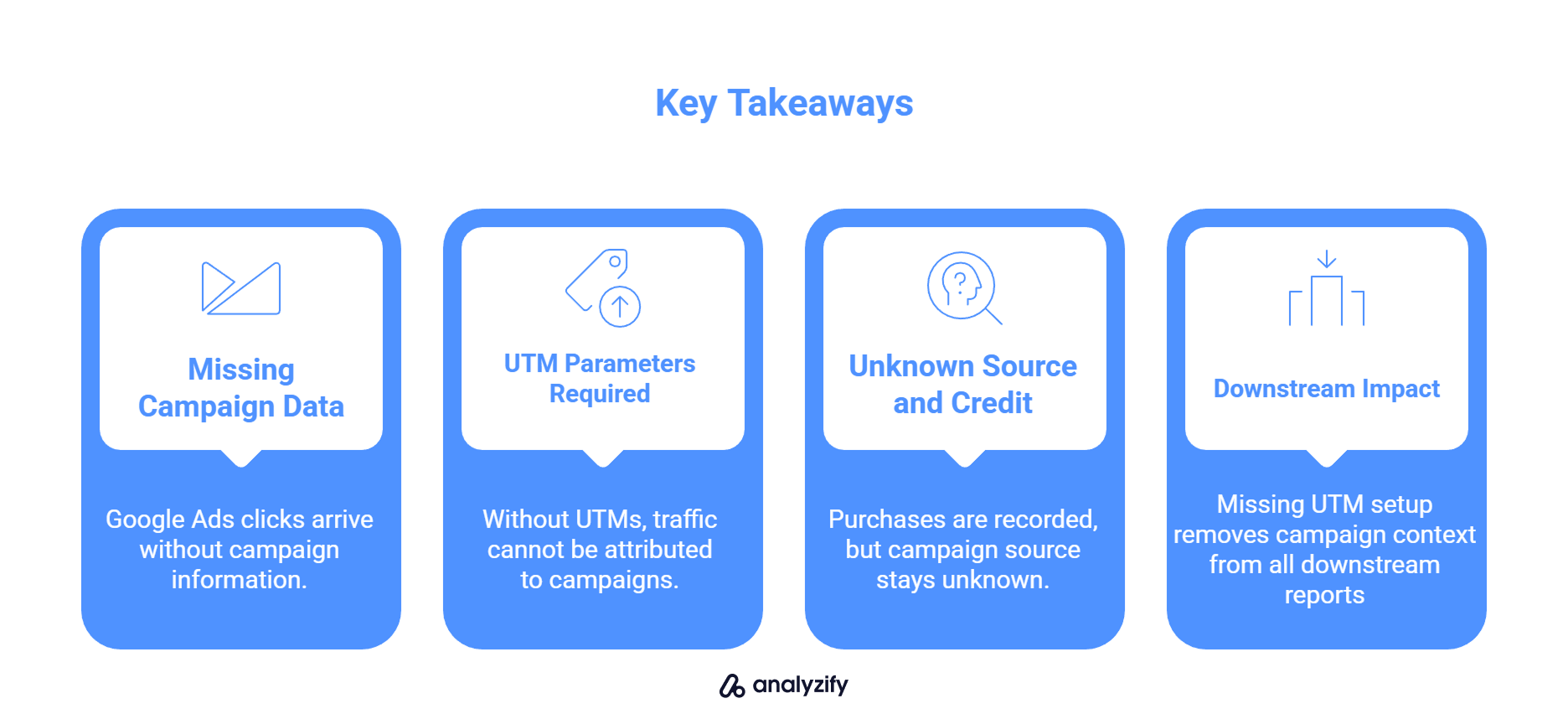
Key takeaways
- Attribution issues often start with missing campaign data in Google Ads.
- Without UTM parameters, analytics and attribution tools cannot correctly identify Google Ads traffic.
- Purchases and other events can be recorded while campaign source and credit remain unknown.
- A single missing UTM setup removes campaign context from all downstream reports.
Why Google Ads Traffic Is Misclassified in Attribution Reports
If Google Ads performance looks fine inside the ad platform but falls apart once you open analytics or attribution reports, the problem usually starts much earlier than people expect. Before looking at models or dashboards, it is worth understanding what information actually reaches your site when someone clicks an ad.
What analytics systems receive when UTM parameters are missing
When a Google Ads click arrives without UTM parameters, analytics tools have very little context to work with. They see a visit, but they do not see a campaign.
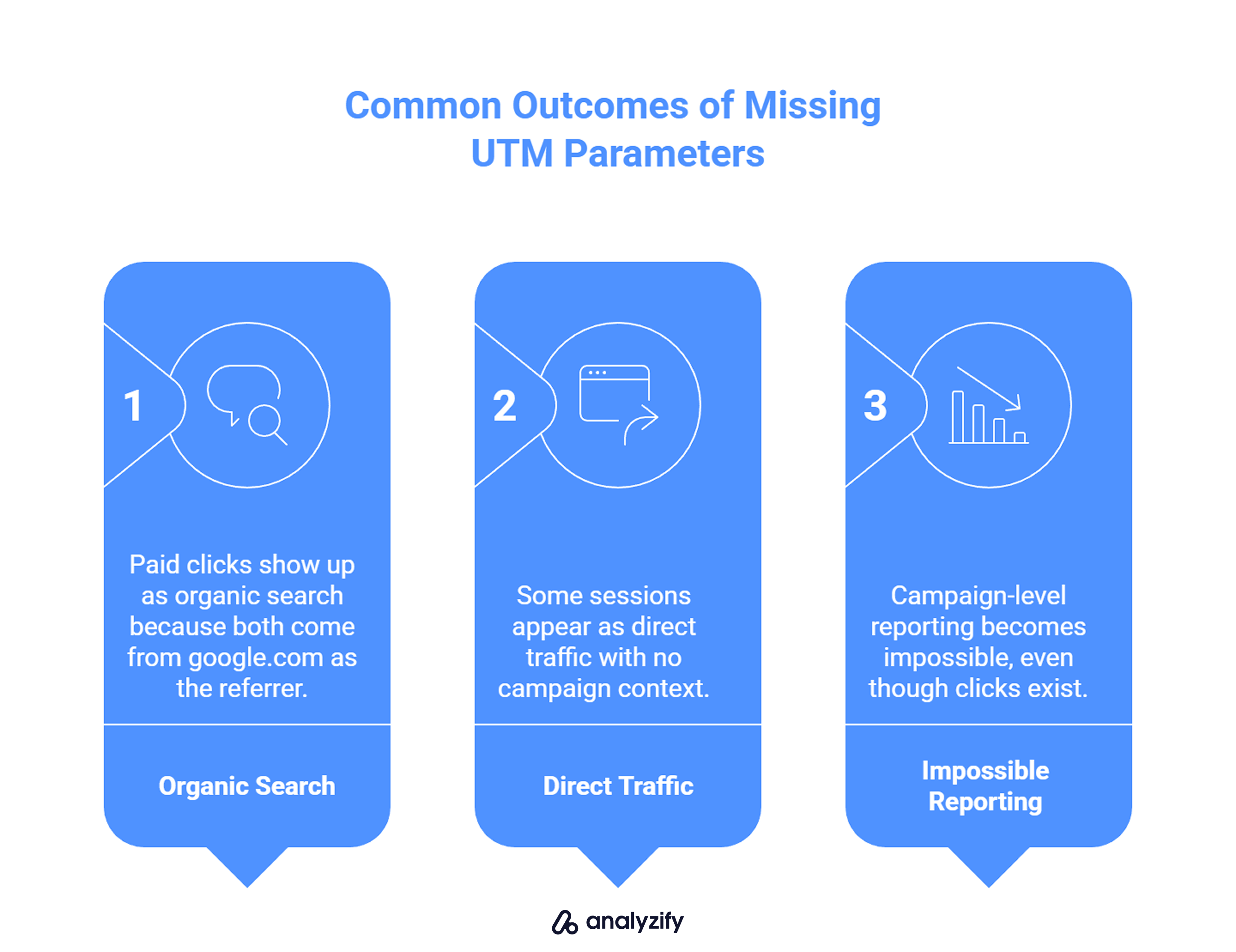
In practice, this leads to a few common outcomes:
- Paid clicks show up as organic search because both come from google.com as the referrer
- Some sessions appear as direct traffic with no campaign context
- Campaign-level reporting becomes impossible, even though clicks exist
The user did click an ad. The session did happen. What is missing is the label that explains why that visit happened.
Why this creates confusion around attribution
From the outside, everything looks like it is working. Events fire. Orders come through. Revenue is recorded. That makes the reporting mismatch feel confusing and frustrating.
The issue is that attribution relies on clear inputs. If Google Ads does not pass campaign information through UTM parameters, attribution systems cannot reliably group or credit that traffic. Reports then reflect exactly what they receive: incomplete context.
That is why these situations often turn into long attribution discussions, even though the root cause is a simple configuration gap at the ad account level.
What Is Usually Missing When Google Ads Attribution Breaks
At this point, the question is simple: what exactly is missing?
In most cases, it is not an advanced setting or a complex attribution rule. It is a set of URL parameters that Google Ads can attach to every click - but only if configured to do so.
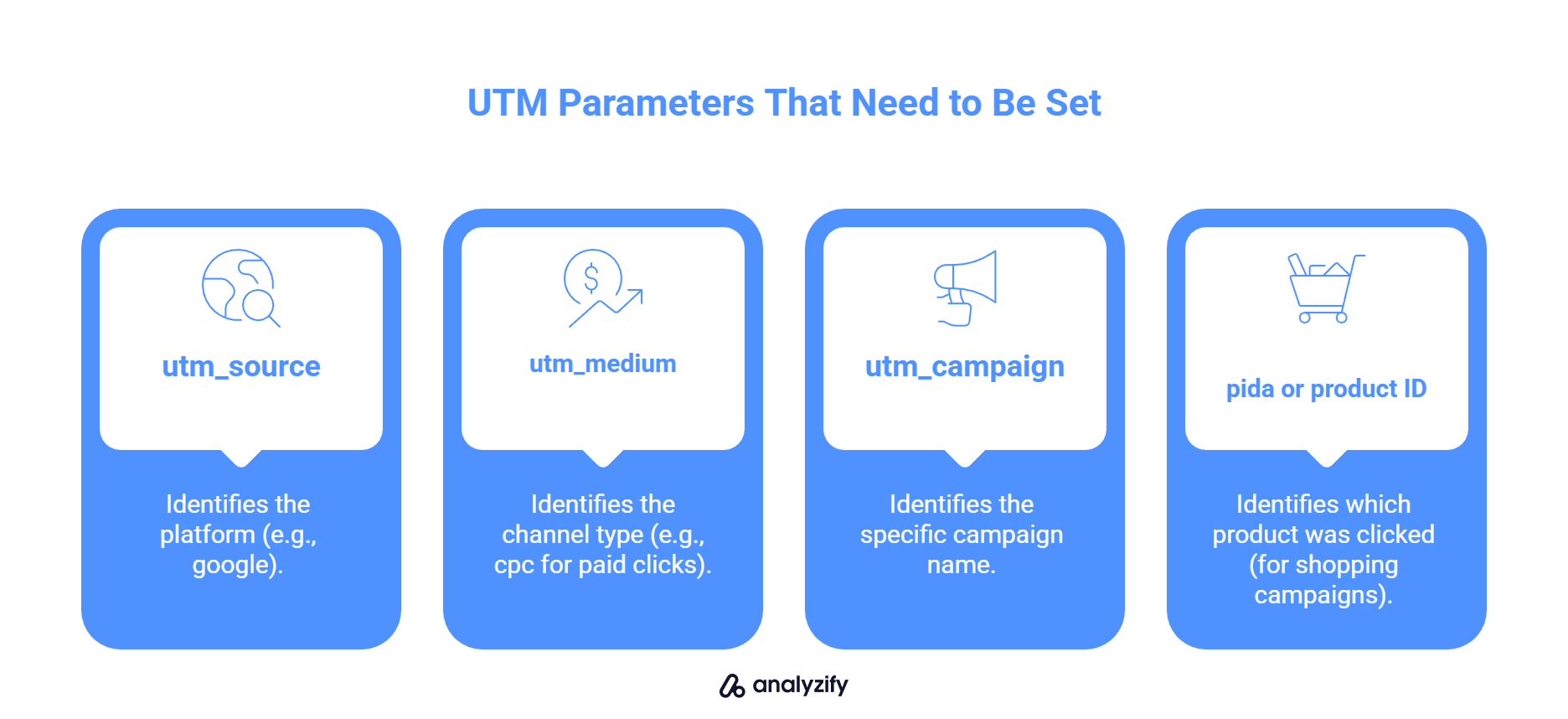
The parameters that typically need to be set:
- utm_source - identifies the platform (google)
- utm_medium - identifies the channel type (cpc for paid clicks)
- utm_campaign - identifies the specific campaign name
- pida or product ID parameter - identifies which product was clicked (for shopping campaigns)
When these are missing, the click still happens. The session still registers. But there is no label explaining where that visit came from or which campaign drove it.
Google Ads does not populate these automatically. If the tracking settings inside the ad account are empty, every click arrives without campaign context - and attribution reports reflect exactly that.
If you want a complete step-by-step guide on how to build and structure UTM parameters correctly across ad platforms, see our guide on ideal UTM setup for Facebook Ads.
Where Google Ads UTM Configuration Actually Lives
Once it is clear that campaign data is missing, the next step is knowing where to fix it. This is also where many setups go wrong, because UTMs are often added in the wrong place.
In Google Ads, UTM configuration does not happen on the landing page itself. It lives inside the ad account - usually in two places:
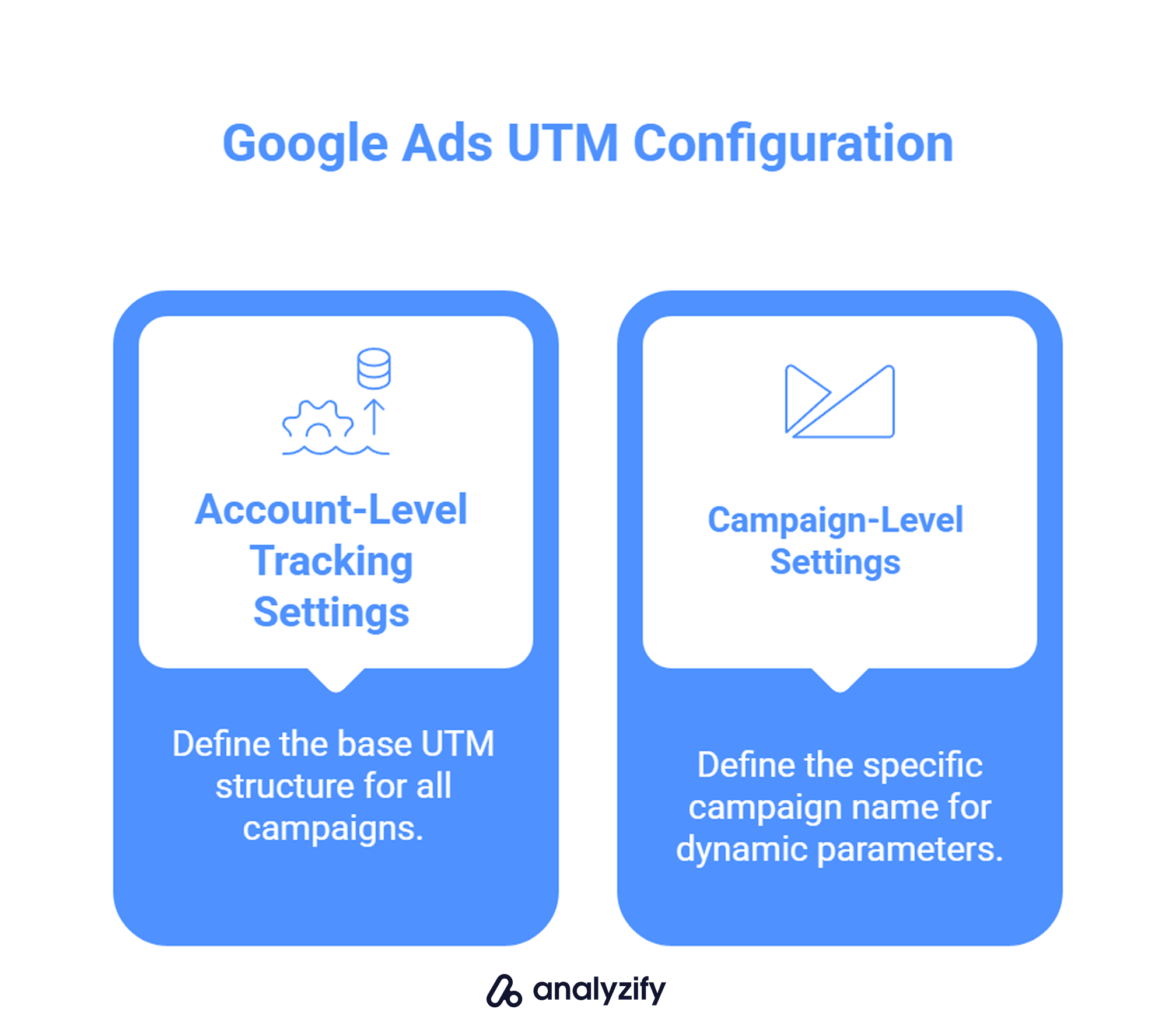
- Account-level tracking settings - where you define the base UTM structure that applies to all campaigns
- Campaign-level settings - where you define the specific campaign name that fills in the dynamic parameter
Both need to be configured. The account-level setting creates the framework. The campaign-level setting supplies the actual campaign identifier. If either is missing, attribution breaks.
When these settings are handled correctly, every click carries the same campaign context into analytics without requiring any changes to landing page URLs.
Step-by-Step: Correct Google Ads UTM Setup
The goal is a consistent UTM structure that applies to every click without requiring manual URL edits. This requires configuration in two places inside Google Ads.
Step 1: Set the Final URL Suffix
 Easy
Easy 3 min
3 min
This structure includes:
- utm_source=google - identifies the platform
- utm_medium=cpc - marks the traffic as paid
- utm_campaign={_campaign} - pulls the campaign name from a custom parameter (configured in Step 2)
- pida={product_id} - captures the clicked product ID (useful for shopping campaigns)
With this in place, every ad click carries the same UTM framework automatically.
Step 2: Define the Campaign Parameter for Each Campaign
Easy3 minWithout this step, the utm_campaign value will be empty even though the rest of the UTM structure exists.
Important: This Applies to New Campaigns Too
Setting the Final URL suffix at the account level does not automatically populate campaign names for future campaigns. Every new campaign you create also needs the _campaign parameter defined in its settings. If you skip this step, new campaigns will have the same attribution gap you just fixed.
Common Mistakes That Break Google Ads Attribution
Even when UTM parameters are configured, attribution can still break if the implementation is inconsistent. These are the most common ways Google Ads UTM setups fail.
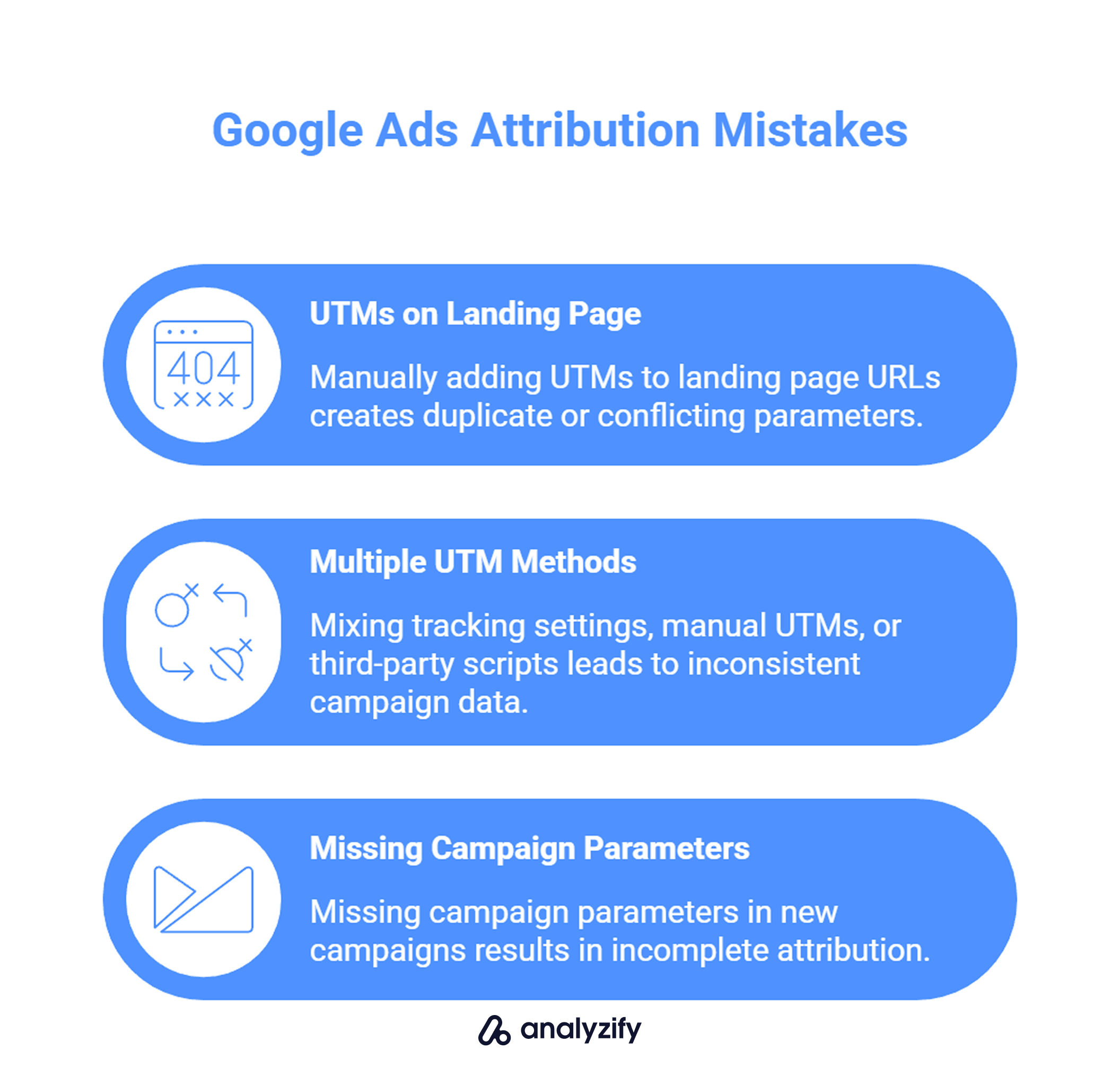
Adding UTMs directly to landing page URLs
This usually happens when someone tries to “make it visible” by editing the destination URL inside the ad. The link loads and the UTMs appear, but it creates problems when combined with tracking settings.
What goes wrong:
- Duplicate UTM parameters in the final URL (the same parameter appears twice with different values)
- Overwritten campaign values when Google Ads appends its own parameters
- Different ads from the same campaign sending inconsistent UTM patterns
If you configure UTMs through Google Ads tracking settings, do not also add them manually to landing page URLs. Use one method only.
Adding UTMs through multiple methods at once
The recommended setup uses Final URL suffix at account level plus custom parameters at campaign level. These work together - that is not the problem.
The problem is when UTMs are also added through other methods on top of that:
- Manual UTMs in the destination URL field
- UTMs added through third-party tools or scripts
- Legacy UTM setups that were never removed
When multiple methods run simultaneously, some clicks carry one structure while others carry another. Campaign reporting becomes unreliable because inputs are not uniform across all traffic.
If you switch to the tracking settings method, remove any other UTM implementations that were previously in place.
Forgetting to configure new or duplicated campaigns
The Final URL suffix applies automatically to all campaigns, but the _campaign custom parameter does not. Each campaign needs this value defined manually.
This becomes an issue when:
- New campaigns are created without adding the custom parameter
- Campaigns are duplicated from templates and the parameter value is not updated
- Multiple people manage the account and some skip this step
The result is partial coverage - some campaigns have complete UTM data while others do not. Attribution reports then show gaps for the campaigns that were missed.
When You Should Recheck Your Google Ads UTM Setup
UTM configuration is not a one-time task. As campaigns are added, copied, or restructured, the original setup can quietly lose consistency.
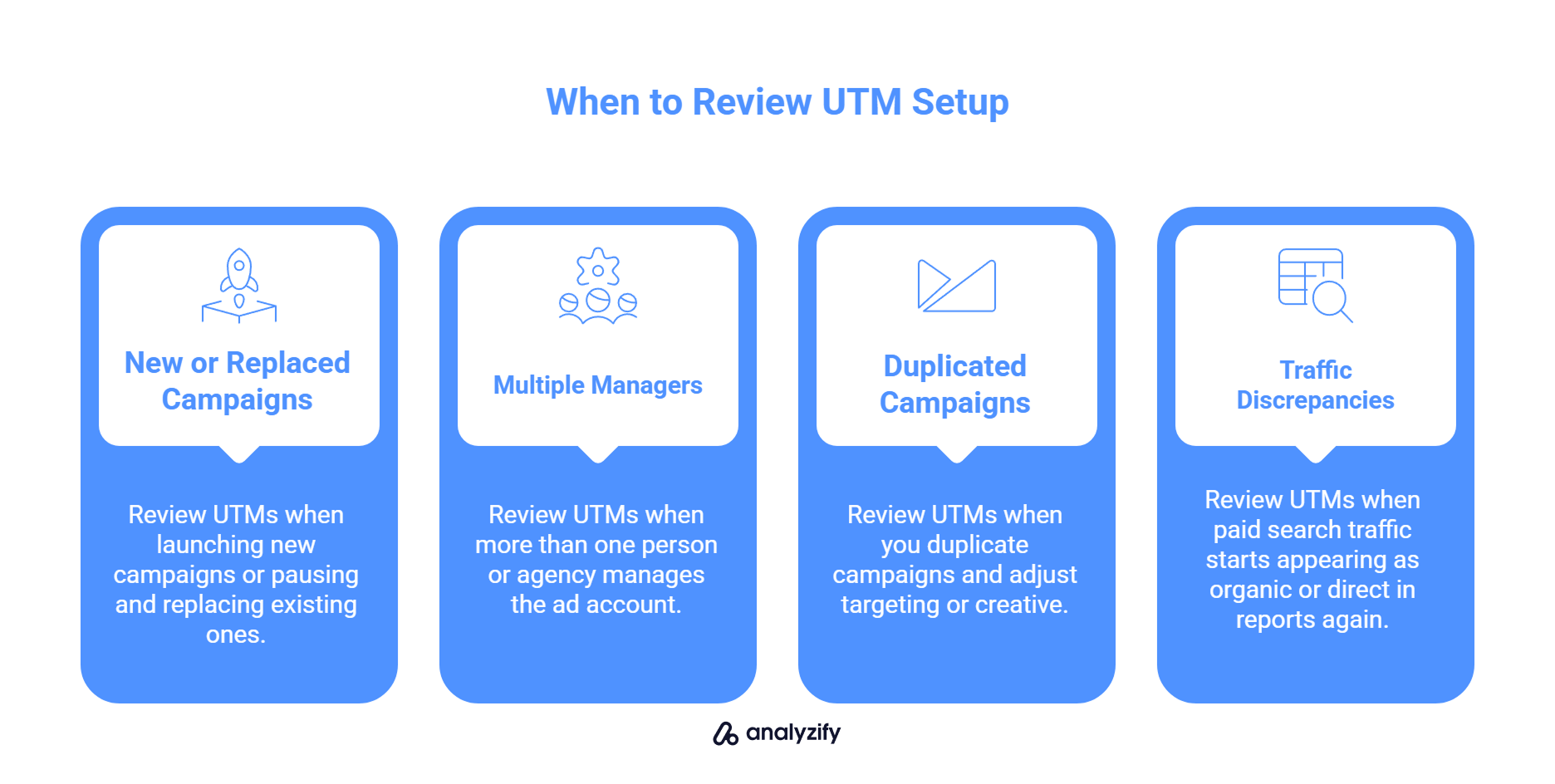
Review your UTM setup when:
- You launch new campaigns or pause and replace existing ones
- More than one person or agency manages the ad account
- You duplicate campaigns and adjust targeting or creative
- Paid search traffic starts appearing as organic or direct in reports again
When you review, check for:
- Final URL suffix is still set at account level with the correct structure
- Every active campaign has the _campaign custom parameter defined
- No manual UTMs have been added to destination URLs
- Duplicated campaigns have updated parameter values (not copied names from the original)
In many accounts, UTMs exist but are no longer applied consistently across all campaigns. Periodic review prevents small gaps from becoming persistent attribution problems.
If You Use Analyzify: Why This Matters for Your Attribution Report
Analyzify’s Purchase Attribution Report tracks the customer journey from first visit to purchase. It captures UTM parameters, click IDs, and referrer data from each session and stores them in your Shopify order notes.
But Analyzify can only capture what actually arrives with the click. If your Google Ads campaigns do not pass UTM parameters, there is nothing to store - and nothing to attribute.
When UTMs are missing from Google Ads:
- Orders from paid campaigns may show no campaign data in the Attribution Report
- Google Ads traffic can appear as organic search or direct
- The full customer journey becomes harder to reconstruct
This applies even if you have server-side tracking enabled. Server-side events send purchase data directly to platforms like GA4 and Meta, but attribution still depends on session-level data captured earlier in the journey. If UTM parameters were not present when the user clicked, server-side tracking cannot recover them.
If your Attribution Report shows incomplete campaign data for Google Ads traffic, check your UTM configuration inside the ad account first. The setup described in this article is what Analyzify needs to attribute purchases correctly.