










Your Google Ads campaigns are running. Purchases are coming through. Everything seems to be working fine.
Then you open the Diagnostics tab on your Purchase Conversion action and find a warning you have never seen before.
It is not always obvious what these warnings mean or, more importantly, who is responsible for fixing them.
Some point to your Merchant Center product feed. Others relate to how cart data is being sent from your store. And some require a bit of investigation before you can even determine the root cause.
Let’s explore the cart data warnings you might see in Google Ads, understand what is actually happening behind the scenes, and see you what to do next.
Key Takeaways:
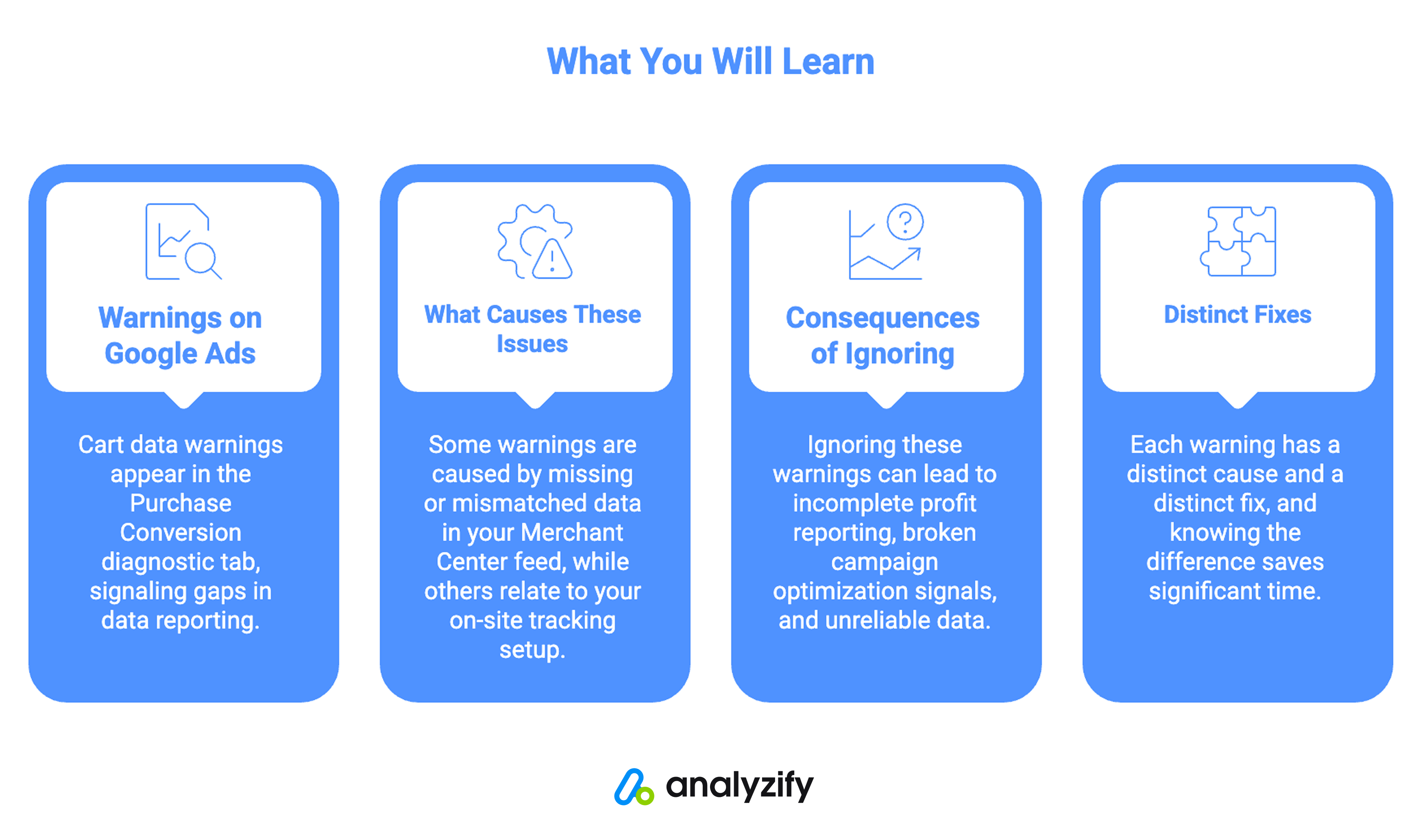
- Google Ads cart data warnings appear in the Purchase Conversion diagnostic tab and signal gaps in how your conversion or product data is being reported
- Some warnings are caused by missing or mismatched data in your Merchant Center feed, while others relate to your on-site tracking setup
- Ignoring these warnings can lead to incomplete profit reporting, broken campaign optimization signals, and unreliable data
- Each warning has a distinct cause and a distinct fix, and knowing the difference saves significant time
- A proper Shopify and Google Ads integration that handles item ID alignment and cart data parameters correctly reduces the chances of most of these warnings appearing in the first place
Resolving Cart Data Errors on Google Ads
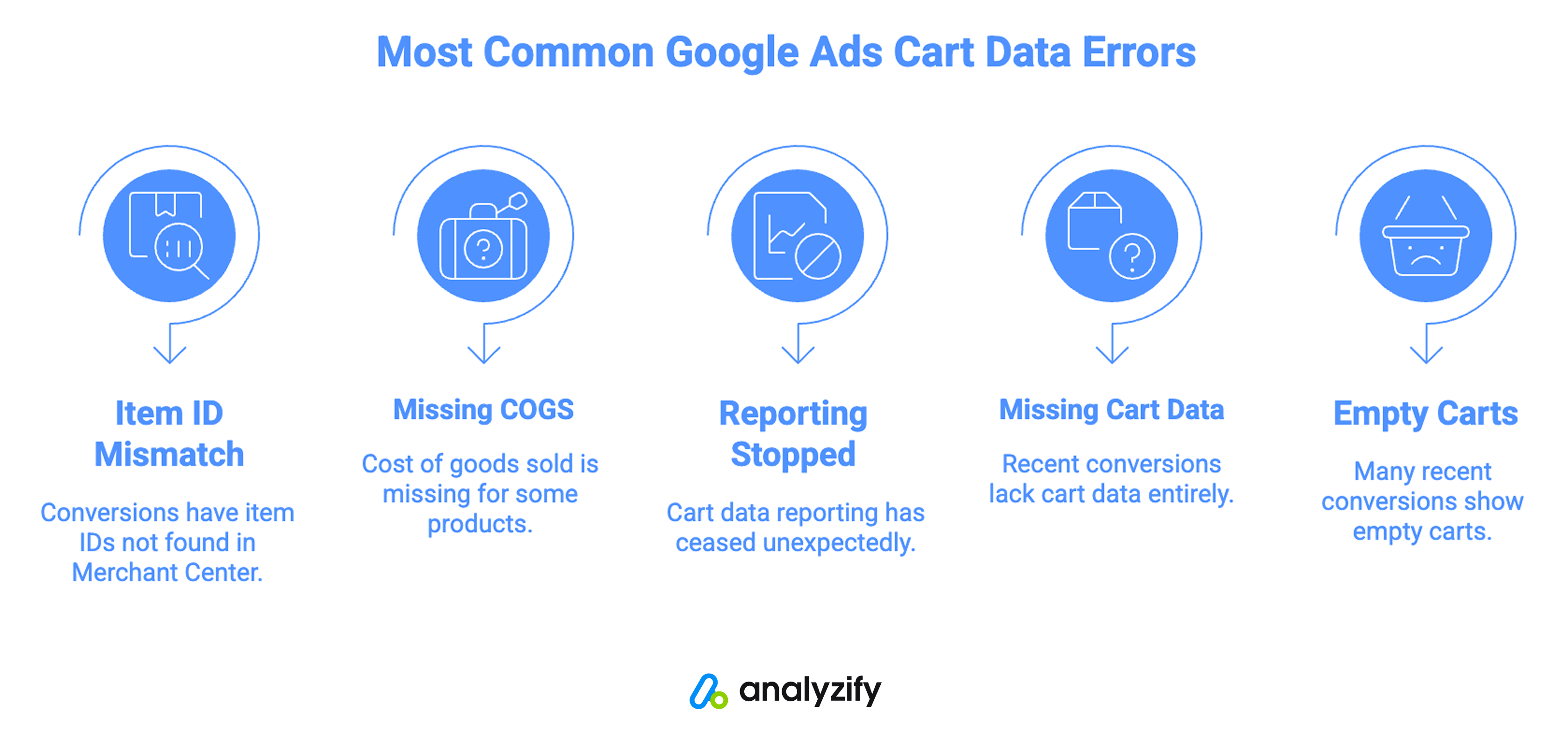
Here are the most common cart data issues that Shopify merchants have faced recently:
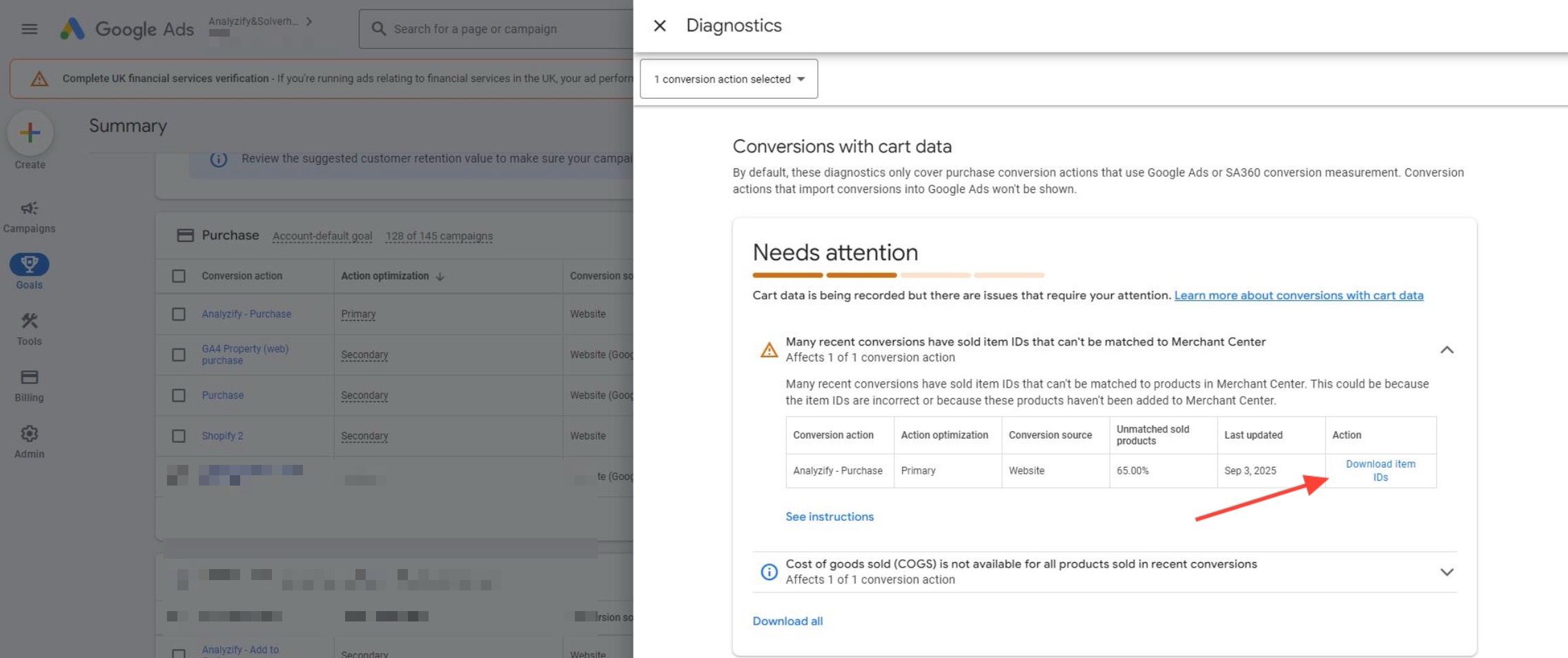
Many recent conversions have sold item IDs that can’t be matched to the Merchant Center
You might see “Many recent conversions have sold item IDs that can’t be matched to the Merchant Center.” or “Some recent conversions have sold item IDs that can’t be matched to the Merchant Center.”.
These warnings mean that some of the products recorded in your purchase conversions cannot be found in your Merchant Center product feed.
Google is receiving item IDs from your website, but those IDs do not correspond to any products it recognizes in your feed.
The root cause is almost always a format mismatch. Your store might be sending product IDs, variant IDs, or SKUs, and your Merchant Center feed may be using a different format entirely.
What to do:
Start by downloading the affected product list directly from your Google Ads account. Google provides a CSV file inside the diagnostic view that shows exactly which item IDs are failing to match. This tells you the scale of the problem and which products are involved.
From there, compare the item ID format being sent from your store against the format used in your Merchant Center feed.
The two must match exactly. If your feed uses variant IDs but your tracking is sending product IDs, that mismatch is what triggers this warning.
This is a Merchant Center issue. Updating your feed with the correct ID format, or adjusting the ID format your tracking sends to align with your existing feed, will resolve it.
Cost of goods sold (COGS) is not available for all products sold in recent conversions
This warning does not affect your conversion tracking directly. Purchases are still being recorded. What is missing is the cost data that Google needs to calculate gross profit at the product level.
When COGS values are absent from your Merchant Center feed, Google can tell you how much revenue your ads generated but cannot tell you how profitable they were.
That is a meaningful gap if you are trying to evaluate campaign performance beyond surface-level ROAS.
What to do:
Download the CSV from the diagnostic tab to see which products are missing COGS data.
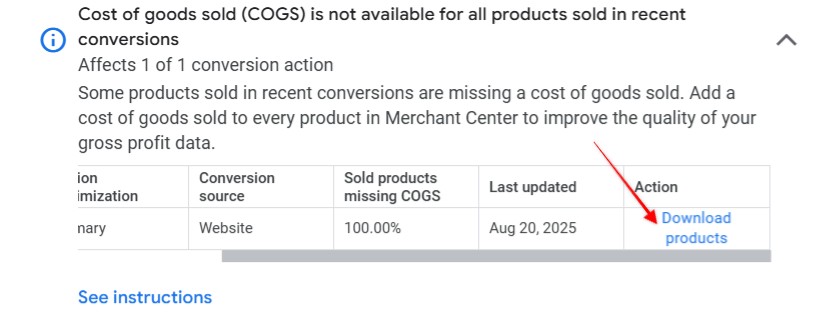
Then update your Merchant Center product feed to include the cost_of_goods_sold attribute for each affected product.
Once this data is in place and your item IDs are matching correctly, Google can begin calculating item-level gross profit and gross profit margin inside your campaign reporting.
These metrics shift your view from revenue to actual profitability, which is a much more reliable signal for budget decisions.
Cart data reporting stopped
You might see “Cart data reporting stopped.” or “Many recent conversions have cart data with formatting issues.”.
This warning is different from the first two. It does not point to your Merchant Center feed. It points to how cart data is being sent from your Shopify store during a purchase event.
When a customer completes a purchase, your tracking setup should be passing a set of required parameters alongside the conversion:
- items
- items.item_id
- items.id
- items.price
- items.quantity
If these parameters are missing, incomplete, or formatted incorrectly, Google flags it as a cart data issue.
What to do:
The first step is verifying that your purchase event is sending all required cart parameters on every conversion.
If you are using a third-party tracking setup or a tag management system like Google Tag Manager, check whether your conversion tags are reading these values correctly.
In some cases, this warning appears because a setup is running an outdated version of a tracking configuration that does not include newer optional parameters Google now expects.
Updating to the latest version of your tracking setup typically resolves this.
Many recent conversions don’t have cart data
You might see “Many recent conversions don’t have cart data.” or “Some recent conversions don’t have cart data.”.
These are the most nuanced of the warnings because the cause is not always immediately obvious. The same warning can appear for different reasons depending on how your conversion tracking is structured.
How to diagnose it:
If your store has the native Google and YouTube app installed and active, check whether the same warning appears on that conversion action as well.
If the native app shows the same pattern, it suggests the issue is not specific to your custom tracking setup. It may be a store-level or product-level factor that affects all conversion sources equally.
If the native app does not show the warning and only your custom conversion action is affected, the issue is more likely in the tracking configuration itself.
In that case, the next step is running test purchases on a selection of products, particularly ones that have been sold through Google Ads, and checking the network data to confirm that the key cart parameters are being sent with each purchase event.
The parameters to look for in the network layer include the merchant ID, feed country, feed language, discount values, and the full items array with IDs, prices, and quantities.
If any of these are absent, that is where the investigation should focus.
Many recent conversions had empty carts
You might see errors showing up like “Many recent conversions had empty carts.” or “Some recent conversions had empty carts.”
It is easy to confuse with the cart data warnings above, but it is a distinct issue.
The difference is that here the items array parameter is actually being sent with the conversion, but it arrives completely empty.
Google receives the container but finds no item ID, price, or quantity data inside it.
This typically happens when the items array is being populated from a data source that returns no values at the moment the conversion fires.
It could be a timing issue in how the purchase event is triggered, or a problem with how the cart contents are being read and passed into the tracking tag.
What to do:
First, verify that your cart data parameters are implemented correctly and that the items array is not being sent empty.
Then complete test orders through different checkout flows to confirm whether the items array includes the expected values for every product sold, specifically item ID, price, and quantity.
If your conversions are not passing those values, they need to be implemented correctly in your checkout flow.
You can use Google Tag Assistant to debug your tags in real-time and confirm what is actually being sent with each conversion.
Why You Shouldn’t Ignore Google Ads Cart Data Warnings
It is tempting to move on when conversions are still being recorded and campaigns appear to be running normally.
But treating these warnings as background noise is one of the more costly mistakes a Shopify merchant can make.
Every marketing decision you make, from which campaigns to scale to where to cut budget, depends on the quality of the data behind it. When that data has gaps, the decisions built on top of it become unreliable:
- You might be scaling a campaign that looks strong on revenue but is quietly eroding margin.
- You might be cutting a channel that was actually contributing to high-value orders.
- The numbers looked fine. The problem was that they were not telling the full story.
Each warning in the diagnostic tab points to a specific gap in that story.
- When item IDs are not matching, Google cannot correctly attribute revenue to individual products. That breaks shopping campaign optimization at the most fundamental level because the platform cannot connect an ad click to the actual item sold.
- When COGS data is missing, you are left evaluating performance through revenue and ROAS alone, two metrics that say nothing about whether a campaign is actually profitable. A strong ROAS on a low-margin product is not a win. Without cost data in the picture, you cannot tell the difference.
- When cart data warnings appear, purchase events are not sending complete cart parameters, and Google’s smart bidding systems are working with incomplete signals. These systems rely on conversion quality, not just conversion volume. Partial or malformed cart data weakens the inputs, and weaker inputs produce less efficient bidding over time. You may not notice it immediately, but the compounding effect on campaign performance is real.
The broader point is this: confident marketing decisions require data you can trust.
Not data that is approximately right, or right most of the time, but consistently accurate data that reflects what is actually happening in your store.
Resolving these warnings is not just a technical task. It is what makes the difference between running campaigns on assumptions and running them on reliable information.
How a Proper Shopify and Google Ads Integration Prevents These Issues
Most of the warnings you see in Google Ads trace back to the same root problem:
The connection between Shopify and Google Ads is not structured in a way that sends clean, complete, and consistent data on every purchase.
When that connection is built correctly, item IDs align with your Merchant Center feed, cart parameters are included with every conversion event, and the data Google receives matches the format it expects.
That foundation is what prevents most of these warnings from appearing in the first place and what keeps your reporting reliable as your store grows.
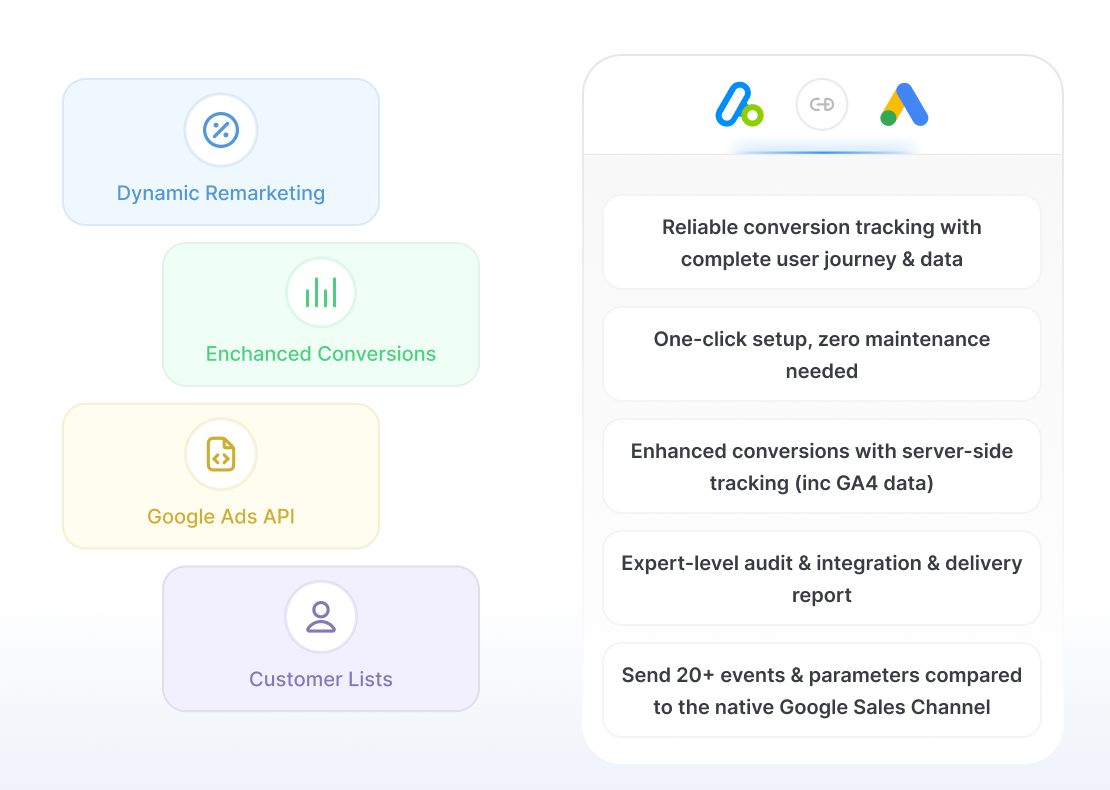
Analyzify’s Shopify & Google Ads integration integration connects your Shopify store with Google Ads in a way that goes well beyond basic conversion tracking.
On the data side:
- Analyzify sends comprehensive order-level and customer-level data to Google Ads alongside every conversion, including COGS data with each purchase event so that Google can surface gross profit and margin data inside your campaign reporting.
- Item ID formats are aligned with your Merchant Center feed so that product matching works correctly across shopping campaigns and dynamic remarketing.
- Cart parameters are structured in exactly the format Google expects, which is what keeps cart data reporting clean and warning-free.
On the reliability side:
- Analyzify monitors your conversion tracking daily, cross-comparing Shopify orders with Google Ads conversion data to catch discrepancies before they compound.
- The setup uses the server-side Google Ads API for enhanced conversions, which means attributed conversion data is enriched with first-party signals and is far less susceptible to browser-side limitations.
- Because Google Ads requirements evolve, the integration is actively maintained to stay current with the latest tag specifications, so you are not left running an outdated setup that quietly falls out of compliance.
The result is a tracking setup where the data flowing into Google Ads is accurate, complete, and structured for campaign optimization rather than just reporting.
That is what allows you to make budget decisions with confidence, evaluate performance without second-guessing your numbers, and scale what is genuinely working.
 Join 3,000+ Shopify merchants who send enriched data to 10+ marketing platforms
Fix your Google Ads cart data issues
Get reliable conversion tracking with enhanced data - expert audit & validation included.Conclusion
Cart data warnings in Google Ads are easy to overlook, especially when purchases are still coming through and campaigns appear to be running.
But each warning is a signal that something in your data pipeline is incomplete, and incomplete data has a way of quietly distorting the decisions you make on top of it.
If you are seeing these warnings regularly, it is worth examining whether your Shopify and Google Ads connection is structured to send that data correctly and consistently from the start.