










Klaviyo’s Shopify integration uses more than one method to collect data. Some events flow server-to-server through webhooks, others through a Shopify Pixel, and two still run through a browser-side script. That mix explains why some parts of the integration are rock-solid and others quietly drop events.
Key Takeaways
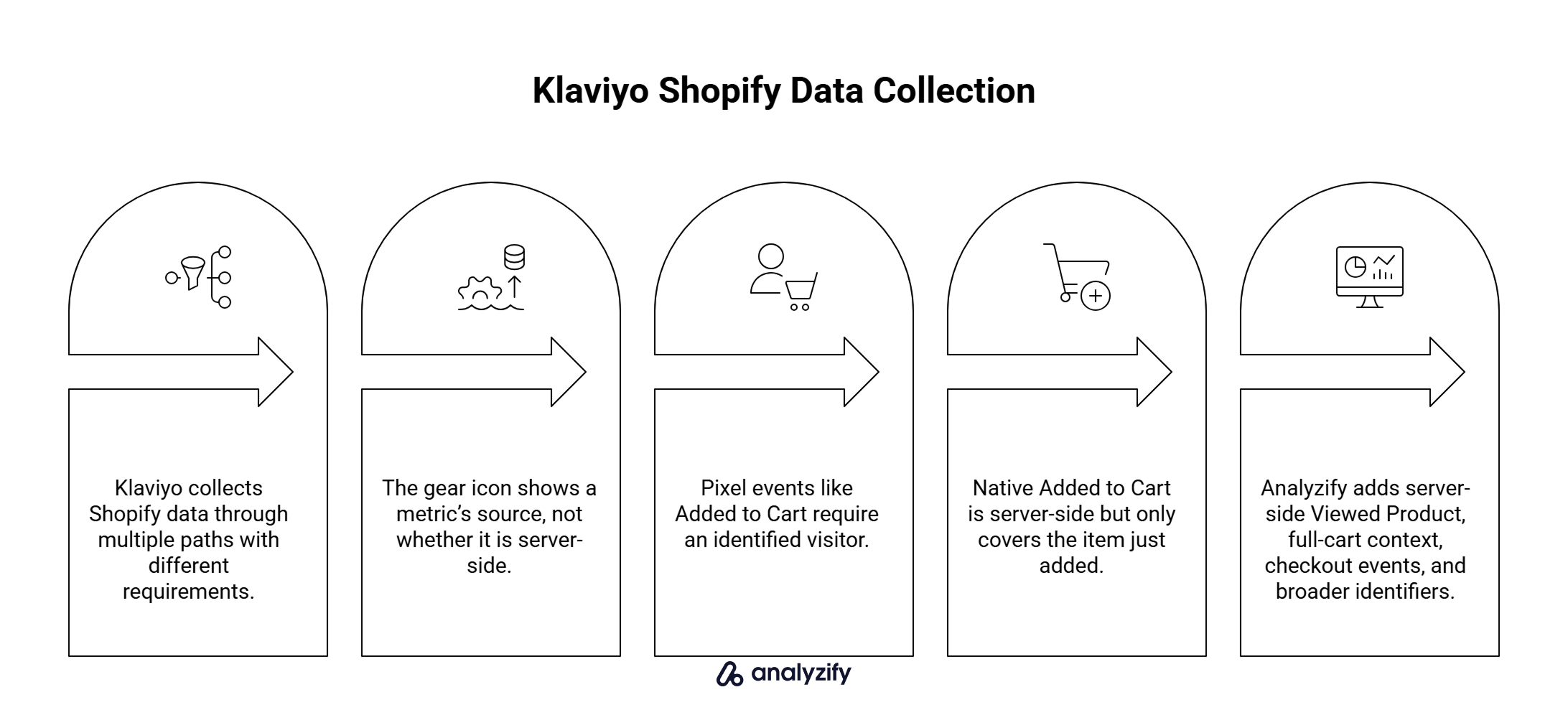
- The Klaviyo Shopify integration collects data through four different paths, each with different reliability and identification requirements.
- The gear icon in Klaviyo tells you where a metric comes from, not whether it is server-side or client-side.
- Pixel events like Added to Cart only fire once the visitor has been identified.
- Native Added to Cart is server-side and rich in properties, but only tracks the single item just added.
- Analyzify adds server-side Viewed Product, full-cart context, checkout-step events, and broader identifier inputs on top of native.
How the Klaviyo Shopify Integration Collects Data
The integration uses several collection paths, and each one handles a different set of events. Which path an event takes determines how reliable it is and whether it fires for a given visitor at all.
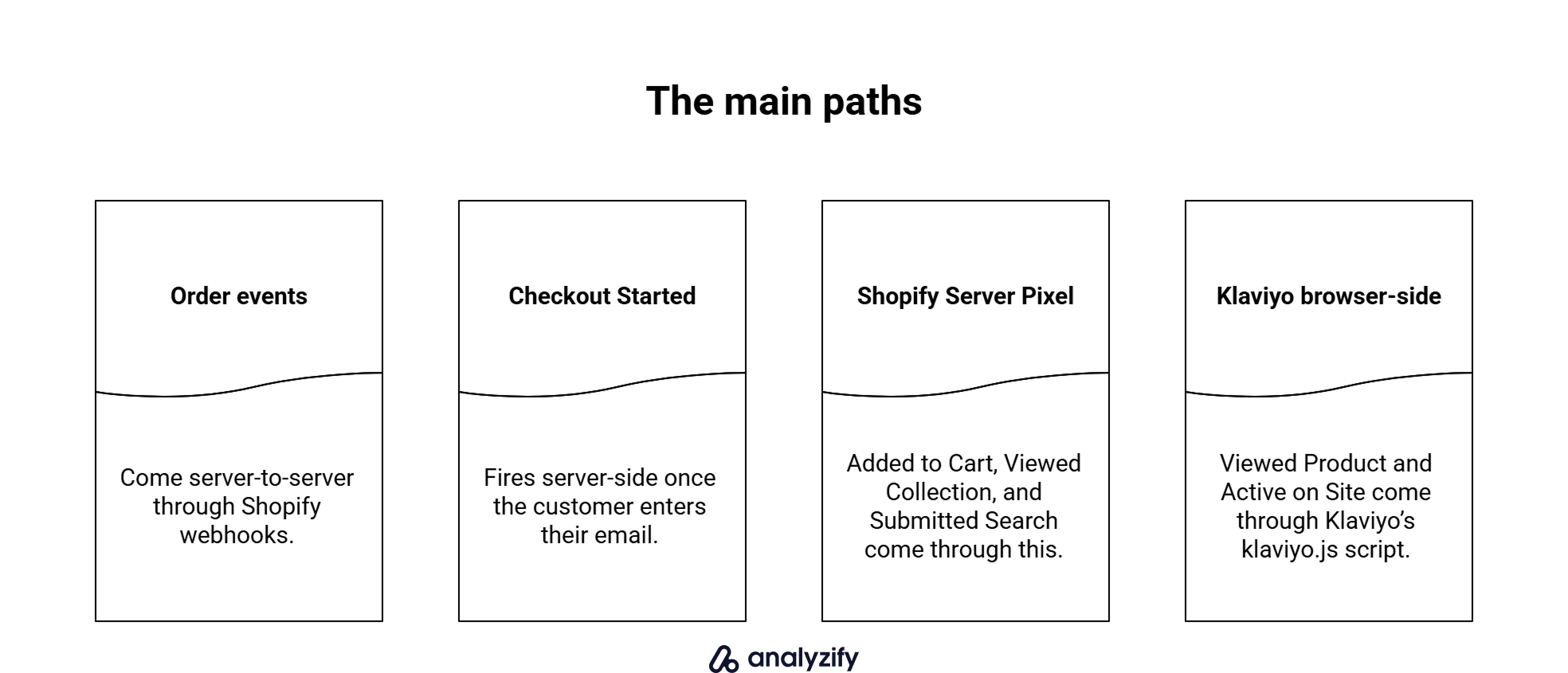
The main paths:
- Order events (Placed Order, Ordered Product, Fulfilled Order, Cancelled Order, Refunded Order, and shipment events) come through Shopify’s webhook system, delivered server-to-server from Shopify to Klaviyo.
- Checkout Started fires from Shopify’s checkout flow once the customer enters their email. Server-side, but through a different path than the Pixel events below.
- Three storefront events (Added to Cart, Viewed Collection, Submitted Search) come through the Shopify Server Pixel. Also server-side.
- Viewed Product and Active on Site come through klaviyo.js, Klaviyo’s own script running in the visitor’s browser.
These paths behave differently in reliability, when they fire, and how vulnerable they are to ad blockers or Safari’s tracking restrictions. The same integration can feel rock-solid on order events and thin on browse coverage, depending on which path a given event takes.
Klaviyo also marks events by source in its own interface. If you have opened your Metrics tab, you may have noticed that some events show a Shopify icon and others show a small gear icon. Those two icons mean different things.
What Do the Shopify Icon and Gear Icon Mean in Klaviyo?
The Shopify icon marks Shopify-branded native events. In the Shopify integration, Viewed Product and Active on Site appear with a gear icon because they are tracked through Klaviyo’s onsite snippet rather than natively by Shopify. Any server-side metric from a third-party integration will also appear with a gear icon.
- The icon tells you where the metric came from, not whether the event is server-side or client-side. A gear-icon metric can be either.
What Events Does the Klaviyo Shopify Integration Track?
Klaviyo’s current Shopify data reference lists fifteen events, split across four delivery paths. Below is a summary of what each event captures and the conditions on when it fires. For the full property spec of any event, Klaviyo’s Shopify data reference is the source of record.
Order Events (Delivered via Shopify Webhooks)
These events flow from Shopify’s server directly to Klaviyo’s, without ever passing through the visitor’s browser.
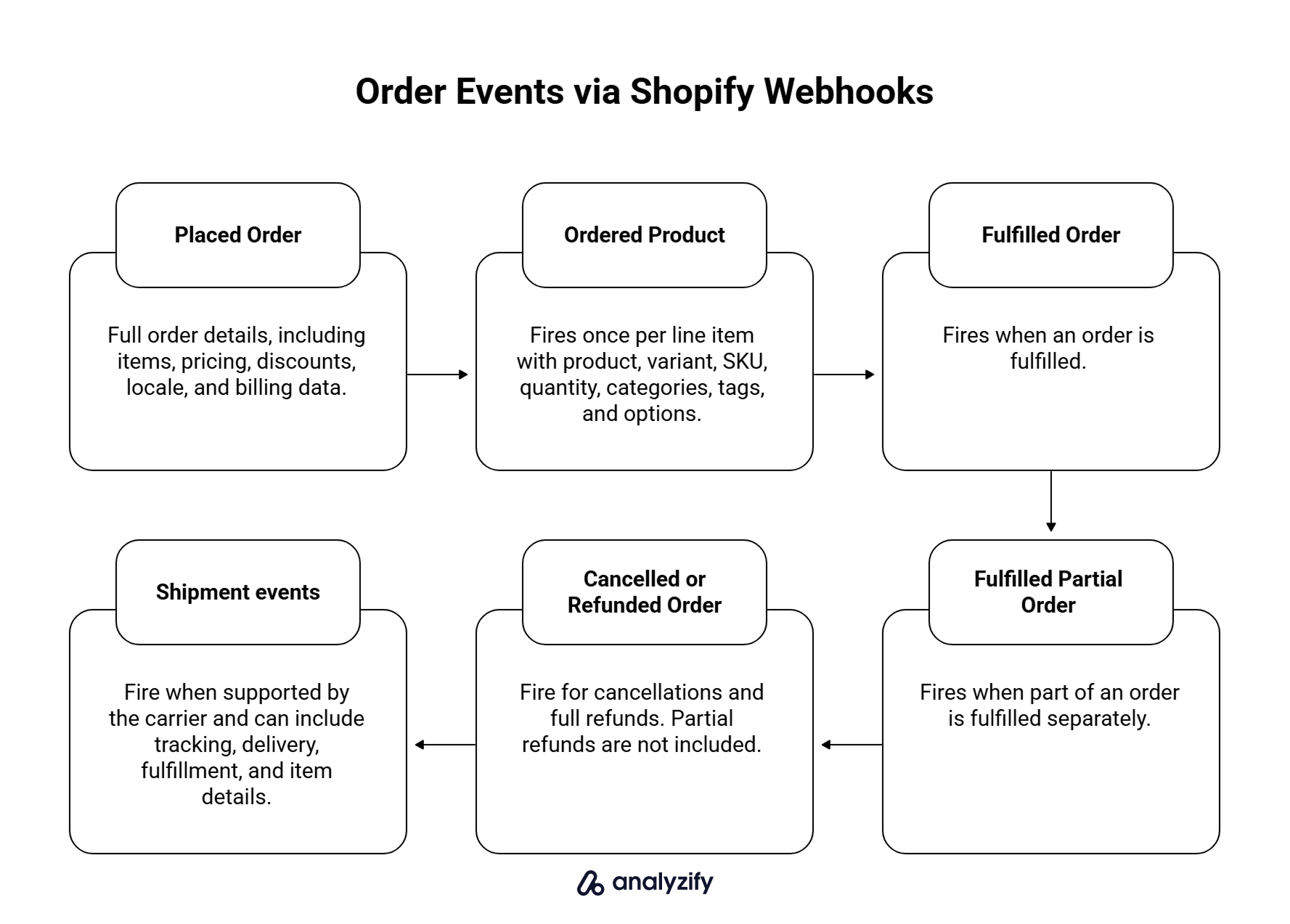
- Placed Order fires when a customer completes checkout in Shopify. It carries the full cart contents (items, collections, item count), pricing and discount data (order value, discount codes, total discounts), customer locale, source name, and billing address where available.
- Ordered Product fires once per line item in the order, so a two-item purchase generates one Placed Order and two Ordered Product events. Each carries variant-level detail: product name, variant name, SKU, quantity, categories, tags, variant options, and product attributes.
- Fulfilled Order fires when an order is marked fulfilled in Shopify. Same core content as Placed Order.
- Fulfilled Partial Order fires when a placed order is partially fulfilled, for example when items from the same order ship separately.
- Cancelled Order and Refunded Order fire on cancellation or full refund respectively. Klaviyo only receives full refunds, not partial ones.
- Shipment events (Confirmed Shipment, Delivered Shipment, Marked Out for Delivery) fire only if Shopify’s carrier supports the notification, which not all do. They carry tracking information, estimated delivery, fulfillment service, and item details.
These are the most reliable events in the integration. Nothing about them depends on the visitor’s browser, so ad blockers, cookie limits, and script failures do not touch them.
Checkout Started (Delivered from Shopify’s Checkout Flow)
Checkout Started’s delivery path is different from both the webhook events above and the Pixel events below.
- Checkout Started fires after the customer enters their email at checkout, tying the event to a profile. It carries the cart contents at the point of checkout entry, pricing and discount data, customer locale, and a checkout URL that can rebuild the cart if the customer opens the abandonment email on a new device.
Checkout Started is not the same event as Shopify’s own “Abandoned Checkout” metric. Klaviyo’s abandoned cart flow triggers on Checkout Started; Shopify’s built-in abandonment email uses Abandoned Checkout. If both systems are active, you may want to disable Shopify’s abandonment email to avoid sending recovery emails to the same customer twice.
Storefront Pixel Events (Delivered via Shopify Server Pixel)
Three storefront events come through Shopify’s Server Pixel per Klaviyo’s current Shopify data reference. All three are server-side, but they only fire once the visitor has been identified.
- Added to Cart fires when an identified visitor adds an item to their cart. It carries product information (name, variant, brand, category, image, SKU), pricing data (price, compare-at price, currency, and total value), and country and region IP codes. The event tracks one item at a time and does not include other items already in the cart.
- Viewed Collection fires when an identified visitor views a collection page. It carries the collection name and ID, along with country and region IP codes.
- Submitted Search fires when an identified visitor submits a search. It carries the search query and country and region IP codes.
All three require identification. A visitor browsing anonymously does not generate any of these events.
Onsite Tracking Events (Delivered via klaviyo.js)
Two events remain client-side, tracked through Klaviyo’s own script installed on your Shopify store via the app embed.
- Viewed Product fires when an identified visitor views a product page. It carries product information (name, image, brand, category) and pricing (price and compare-at price).
- Active on Site fires when an identified visitor is active on the store. It carries browser and device details, page URL, and UTM parameters from the incoming link.
These are the last remaining client-side pieces of the integration. They run in the visitor’s browser, so ad blockers, Safari’s tracking restrictions, and slow-connection script failures all still reduce their coverage.
How Does Klaviyo Identify Visitors on Shopify?
The identification requirement applies to storefront events (Pixel and onsite tracking), not to order events, which arrive with customer data straight from Shopify’s checkout. Order events do not need Klaviyo to have separately identified the visitor.
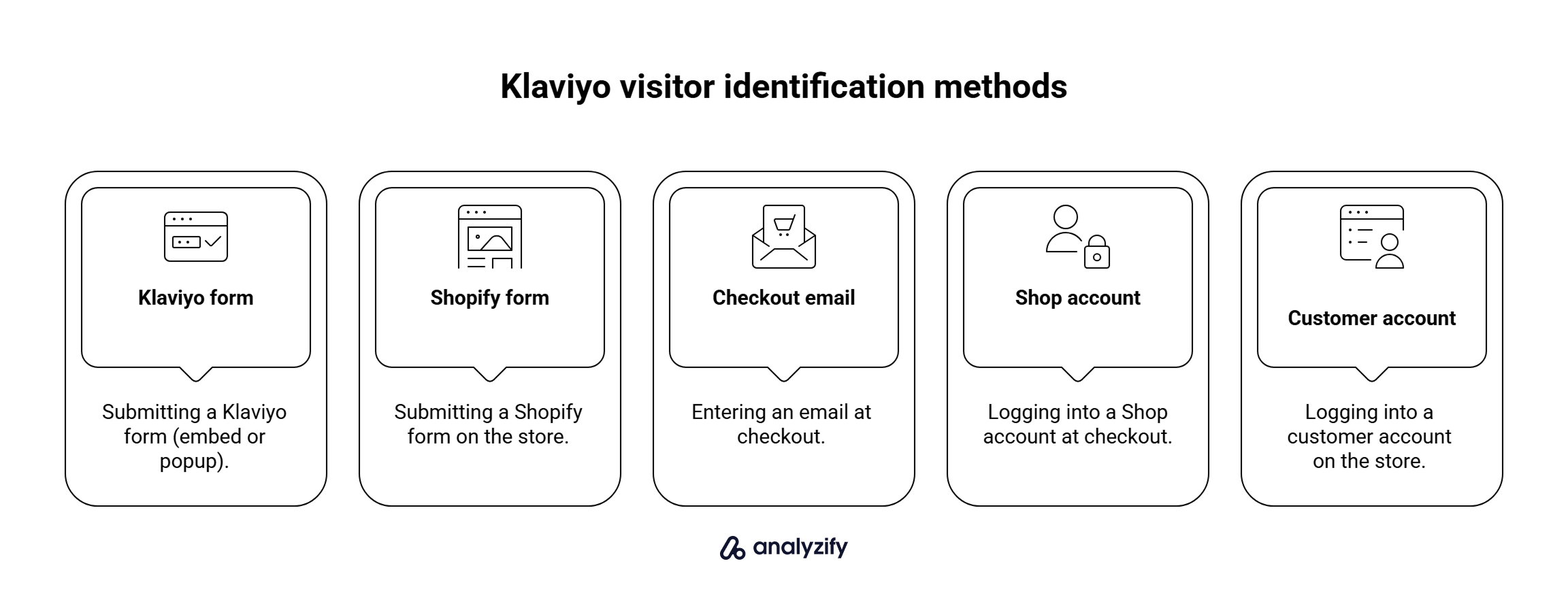
For the storefront Pixel events (Added to Cart, Viewed Collection, Submitted Search), Klaviyo recognises identification through:
- Submitting a Klaviyo form (embed or popup).
- Submitting a Shopify form on the store.
- Entering an email at checkout.
- Logging into a Shop account at checkout.
- Logging into a customer account on the store.
Klaviyo’s onsite tracking (Viewed Product, Active on Site) supports those same paths and adds a few more, including clicks on links in Klaviyo emails and SMS that carry an identifier back to the visitor’s session.
Once identification has happened, storefront events start firing. Before then, the two types of storefront tracking behave differently. Pixel events do not fire at all for anonymous visitors. Klaviyo.js events can capture some anonymous browsing and attach it to a profile after later identification, when anonymous activity backfill is enabled and the visitor has provided the required consent. Eligible activity is stored locally for up to 14 days and associated with the profile once they identify.
The edge case worth pulling out is what happens when a visitor puts something in their cart before they identify themselves.
What Happens to Anonymous Cart Adds?
When an anonymous visitor adds to cart on Shopify, the Added to Cart event is not created at all. The Server Pixel requires the visitor to be identified at the moment of the cart action, and no event is generated without identification. If that same visitor identifies later (by entering an email at checkout, submitting a popup form, or logging in) and then leaves without buying, the earlier cart action does not become available as a flow trigger.
- Klaviyo’s anonymous activity backfill covers browser-tracked events like Viewed Product and Active on Site. It does not retroactively create the Server Pixel Added to Cart event.
Anonymous browsing gets stored and attached to a profile once identification happens. Anonymous cart actions do not, because the event was never generated in the first place.
Where the Klaviyo Shopify Integration’s Coverage Runs Out
Four coverage gaps in the integration shape what flows are possible on native tracking alone.
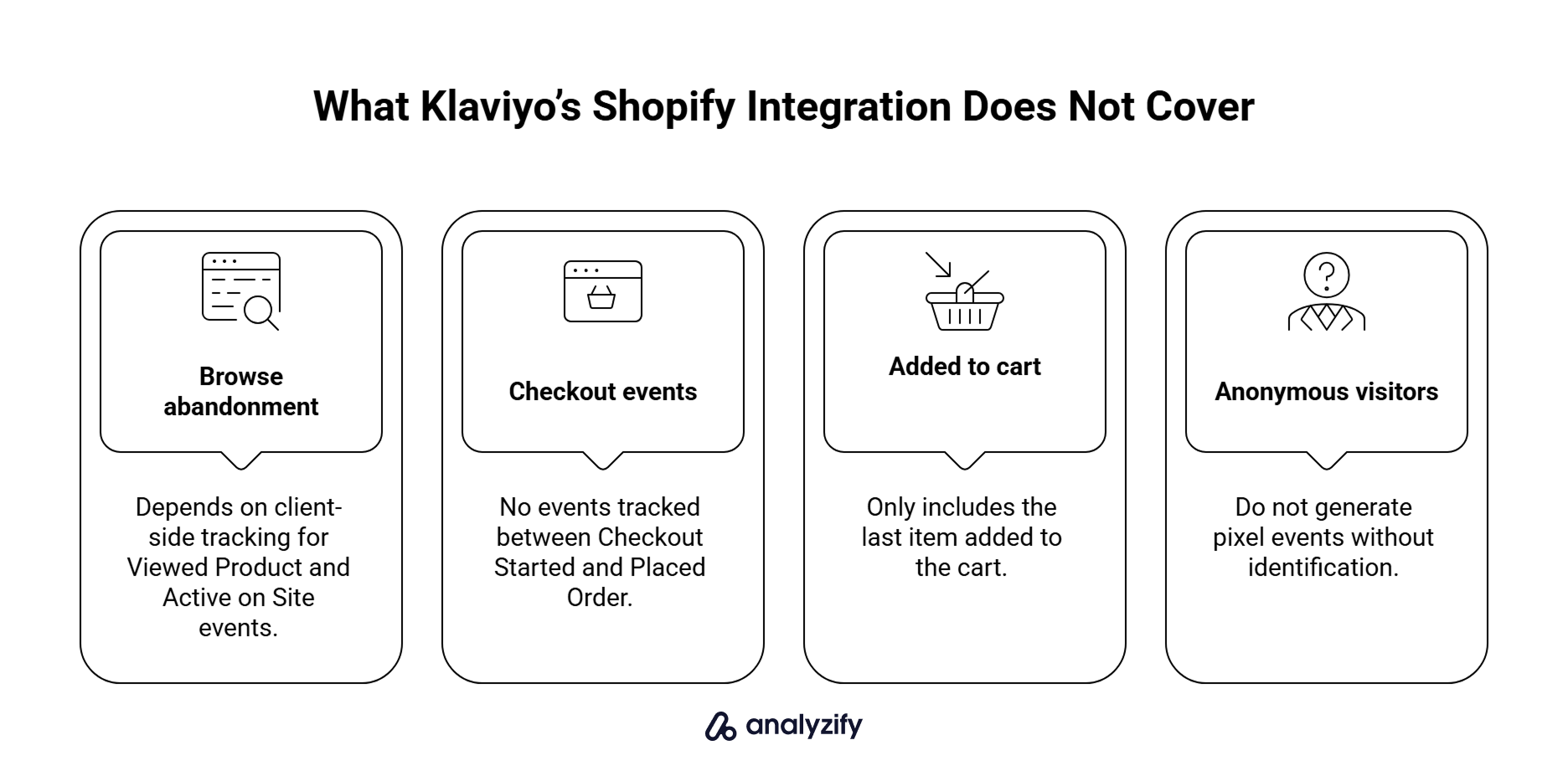
Browse Abandonment Still Depends on Client-Side Tracking
Viewed Product and Active on Site are the foundation of any browse abandonment flow, and both remain client-side. This is the client-side loss described in the events section above, and for browse abandonment specifically it means the flow can only enrol visitors whose product page views actually made it to Klaviyo.
- Stores that rely heavily on browse abandonment feel this most acutely, because the loss compounds over identified sessions that were meant to be tracked.
No Events Between Checkout Started and Placed Order
The integration exposes Checkout Started when the customer enters an email, and Placed Order when the order completes. Nothing tracks the intermediate steps: entering shipping information, entering payment details, applying a discount code, or selecting a shipping method.
This makes it impossible to build flows that respond specifically to shipping-friction abandonment or payment-friction abandonment. A customer who reached the shipping step but never entered payment looks the same as one who left immediately after entering their email, because both are tracked with Checkout Started and nothing else.
Added to Cart Only Carries the Single Item Just Added
For flow enrolment, the single-item nature of the event does not matter. The flow still fires. What it changes is what the abandonment email displays and what the flow can segment on.
- Rules like “abandoned cart over $150” or “abandoned cart including a specific category” become approximate rather than exact, because the event only knows about the last item added, not the two or three items the shopper had already built up in their cart.
Anonymous Visitors Do Not Generate Pixel Events at All
This is the quietest of the four losses because it never shows up as missing data. Stores with weak identification paths (no popup, no forced account creation, few email captures before checkout) end up with a large share of cart activity that never enters Klaviyo as an event.
The same visitor could later identify at checkout, become an active Klaviyo profile, and still have no cart event on their profile. There is nothing wrong with the tracking; the event was just never generated in the first place.
What Analyzify’s Klaviyo Server-Side Tracking Adds on Top
Those four gaps set what an additional server-side layer can actually improve. Analyzify addresses the first three directly. The fourth (anonymous cart activity) can be partly reduced by capturing email identifiers from more supported sources, though not eliminated.
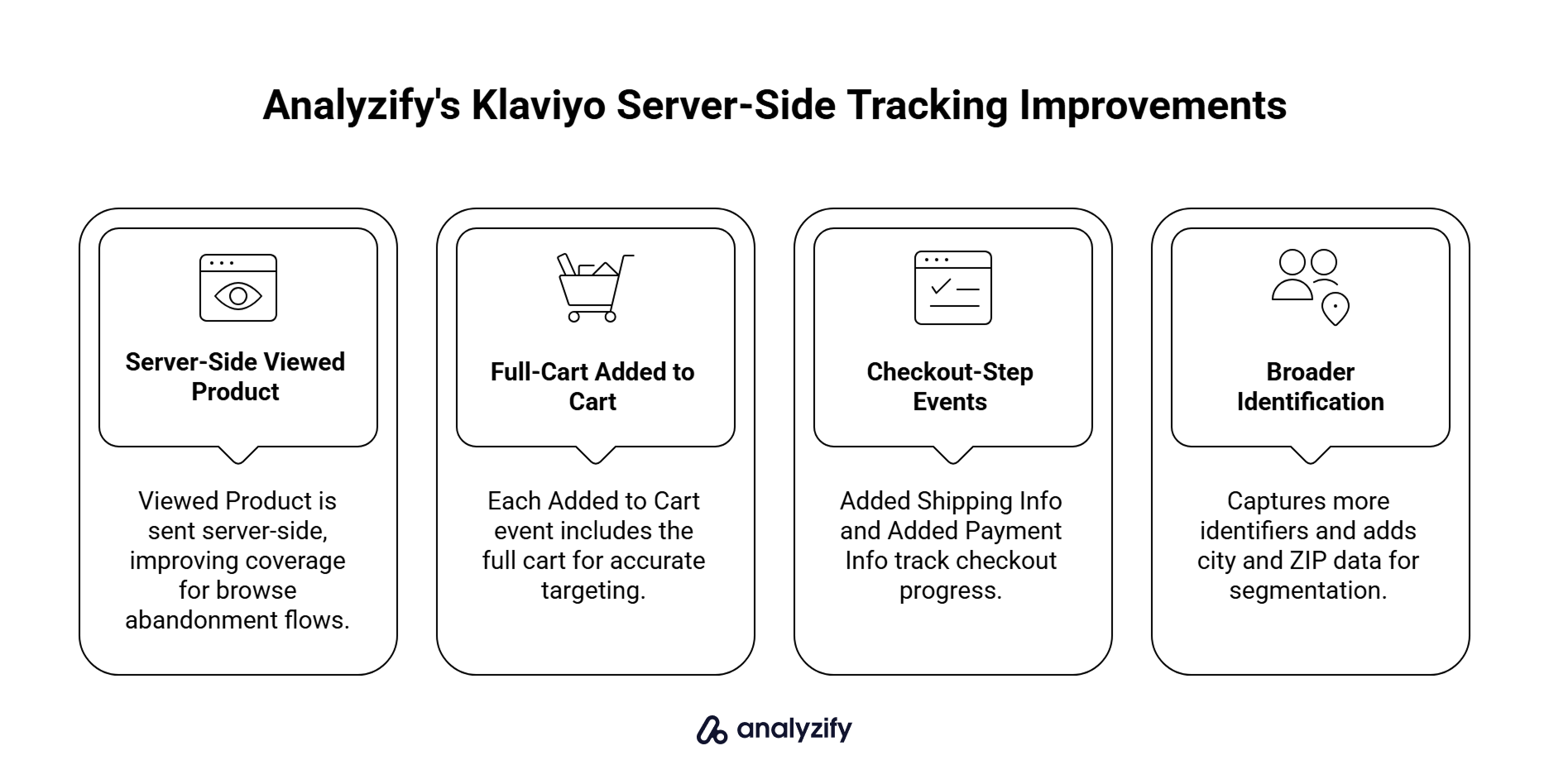
Server-Side Viewed Product for Browse Abandonment Coverage
Analyzify sends Viewed Product from the server rather than through klaviyo.js. Same event category (product page views on identified profiles), same downstream use (browse abandonment flows, product affinity segmentation), but delivered server-side.
- It moves Viewed Product off the browser-side path used by Klaviyo’s native setup, which is what most stores need for reliable browse abandonment coverage.
Full-Cart Context in the Added to Cart Event
Where native Added to Cart tracks the item just added, Analyzify sends the full cart on every Added to Cart event, including every item currently in the cart, item names, categories, and cart-level value:
- Abandonment emails can show every item in the cart, not just the last one added.
- Cart-value segmentation like “abandoned cart over $150” becomes exact.
- Category and brand segmentation reflects the whole cart, not just the last product touched.
- Cross-sell logic can reference the shopper’s actual cart composition.
Checkout-Step Events Between Checkout Started and Placed Order
Analyzify sends two events that fill the gap between checkout entry and order completion:
- Added Shipping Info fires when the shopper enters a shipping address in checkout, enabling shipping-friction abandonment flows.
- Added Payment Info fires at the final step before payment, enabling payment-friction abandonment flows.
These let you build flows that respond to the exact checkout step the shopper reached, with different timing and messaging for shipping-friction abandonment versus payment-friction abandonment.
Broader Identifier Inputs and Finer Location Data
Native Pixel events fire only after identification through the paths listed earlier: Klaviyo form, Shopify form, checkout email, or account login. Analyzify can capture email identifiers from additional supported interactions and form sources, including HubSpot forms, login, signup, and third-party forms configured to generate the relevant lead event.
This can increase the share of cart activity tied to identifiable profiles, particularly on stores where popup conversion is soft or customers do not typically create accounts before checkout. The scale of the improvement depends on your specific form and identification setup, but the additional capture surface itself is real and configurable.
Some native Shopify events include country and region data (Added to Cart, Viewed Collection, Submitted Search carry _ip_country_code and _ip_region_code), though the coverage is not universal across the integration. Analyzify also sends city and ZIP with its supported events, which supports geography-based segmentation, shipping-cost logic, and regional campaign targeting.
How to Run Native and Server-Side Tracking Together
Adding a server-side layer on top of native works well, but only if you handle the metric combination correctly. Klaviyo treats the native and any additional server-side event as two separate metrics. Both can run in parallel, but the flows need to be configured to prevent duplicate messaging. That takes one of a small number of supported patterns.
The Waterfall Filter Pattern
The cleanest architecture is to keep your native flows on their native metrics, and set up parallel Analyzify flows with an exclusion filter that checks whether the corresponding native metric has occurred within the last 24 hours. If the native metric already fired for that profile, the Analyzify flow skips them.
- The filter is required, not optional. Klaviyo does not automatically deduplicate messages between separately named metrics.
Two Ways to Use Native and Server-Side Metrics Together
If you want a single shopper to be enrolled in only one flow at a time across both metrics, you have two supported options:
- Clone the flow, set the new metric as the trigger on the copy, and use exclusion filters between the two flows to avoid double-enrolling anyone.
- Build a segment with membership rules covering both metrics, and use “Added to Segment” as the flow trigger, with re-entry and exclusion rules configured on the segment itself.
Both approaches are supported. What is not supported is using two separately named metrics as an OR trigger on a single metric-based flow, because Klaviyo’s metric trigger accepts one metric at a time.
Close the Coverage Gap on Your Klaviyo Shopify Setup
The native integration handles most order and storefront tracking well. Closing the remaining gaps without disturbing what already works is the case for a parallel server-side layer.
Analyzify’s Klaviyo server-side integration runs alongside the native one on separately named metrics, adding exactly what the four gaps above call for.